Feb 26, 2026
How to build beautiful slide decks 10x faster with Bolt.new
Build polished, interactive slide decks in Bolt.new just by prompting. Easier and smoother than PowerPoint and Google Slides.
Educational
PowerPoint and Google Slides are old news. Now, people are creating slide decks the simpler way with AI tools.
In this tutorial, designer and Bolt super-user Jakub Skrzypczak demonstrates how to create a professional, interactive slide deck with Bolt fast.
You’ll learn:
How to prompt Bolt so you get a professional layout on the first try
Why web-based presentations beat traditional slide editors
How to add motion, transitions, and interactivity that makes decks feel alive
How to apply the same approach to a real-world deck (with charts, maps, toggles, sources)
Got time? Watch the walkthrough.
In a hurry? Get the highlights and snag the prompts below.
The mindset shift: your slide deck is now a website
Building a slide deck in Bolt is a little different than building a deck in PowerPoint in that, instead of building slides in a slide editor, you’re essentially building a full-screen presentation website.
That means you get:
Pixel-perfect rendering across devices
Real responsiveness (desktop → tablet → mobile)
Real interactivity (hover, click, toggles, charts)
Real animations (not “please loop this GIF”)
A single URL as the source of truth
The best part, as always, is that Bolt can get you far with just one prompt.
Why this workflow beats PowerPoint & Slides
Before we reveal the prompt, here’s why you’ll probably want to opt for a Bolt-generated deck next time you have a presentation.
1) No licensing, no installs, no version chaos
PowerPoint decks are files. And files have a tendency to multiply.
We’ve all had the experience of creating a file, saving it, and emailing it to ourselves, only to make a small tweak an hour later and wind up creating yet another nearly identical file to send off.
Before you know it, your inbox is clogged with ten versions of “final_FINAL_for REAL_V4.pptx.”
Worst still, when it comes time to present, there’s always the possibility you’ll accidentally use an old version.
Web decks solve for this.
When you build a web deck with Bolt, your presentation exists at one URL. If you tweak something, just update it once. Everyone sees the same thing.
2) Pixel-perfect across devices
In traditional tools, what you design isn’t always what your audience sees. If you present on a different device, it may not have your fonts saved. Everything gets thrown off.
In web presentations, rendering is consistent by default, and you can control fonts and fallbacks like a real product.
3) Real mobile support
This is a big one.
If your boss opens your deck while commuting, a .pptx is basically unusable. A web deck is responsive and readable immediately.
4) Interactivity is native
Hover states. Click-to-reveal. Expandable detail. Live charts. Toggles. All that good stuff.
Here’s how to build it.
Step 1: Start with a prompt that forces “presentation mode”
Your prompt should start by telling Bolt what the end product should be.
So, your prompt will begin with “Create a premium, full-screen presentation website.”
That phrase does a lot of work. It tells Bolt to:
Build for keyboard navigation
Optimize spacing and typography for projectors
Treat each “slide” as a screen
Make it feel like a deck, not a scroll page
Rmx link: https://bolt.new/~/sb1-h5j1u8a1
Prompt:
Create a premium, full-screen presentation website with the following specifications:
Design Requirements:
Flat, minimalist design with monochromatic color scheme (black/white/gray)
Full-screen layout optimized for presentation mode
Professional, premium aesthetic suitable for business audiences
Add noise and dither effect
Consistent visual hierarchy and typography throughout
Technical Features:
Responsive design that works seamlessly on desktop, tablet, and mobile devices
Dark/light mode toggle for optimal visibility in various lighting conditions (bright conference rooms, dimmed presentation spaces)
Web-based functionality requiring no software installation or version compatibility concerns
Interactive elements (clickable navigation, smooth transitions, hover effects)
Cross-platform compatibility (works on any device with a web browser)
Content Structure (10 slides total):
Title slide: "Why Choose Bolt Over PowerPoint/Google Slides"
The Problem: Traditional presentation software limitations
Consistency Issues: Version conflicts and display problems
Accessibility Challenges: Software dependencies and compatibility
Mobile Limitations: Poor mobile viewing experience
Font and Formatting Issues: Cross-platform inconsistencies
Bolt Advantages: Web-based reliability and consistency
Universal Access: Any device, any browser, anywhere
Interactive Capabilities: Enhanced engagement features
Conclusion: The future of presentations is web-based
Key Messages to Emphasize:
Consistent display across all devices and platforms
No software version conflicts or font substitution issues
Optimal viewing experience in any lighting condition
Professional appearance maintained regardless of viewing device
Enhanced interactivity and engagement options
Include smooth transitions between slides, clear navigation controls, and ensure the presentation itself demonstrates the superior experience of web-based presentations.
In seconds, you should have a deck with:
Full-screen slides
Arrow-key navigation
Slide dots / jump nav
Dark/light mode
Transitions + hover states
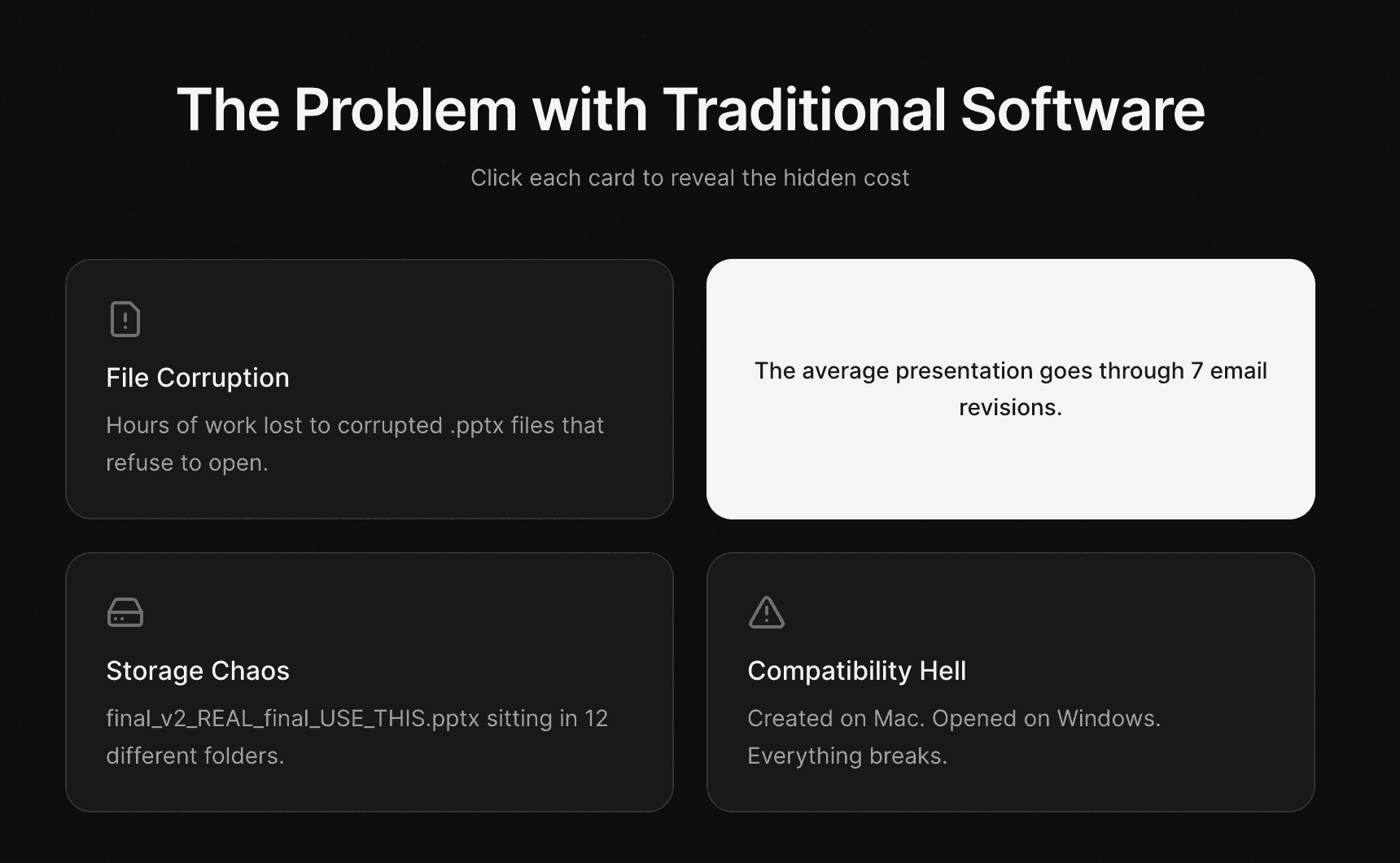
This prompt does the bulk of the work.
Now, you iterate until it’s perfect.
Step 2: Add interactivity
This is where web-based decks really blow traditional slide deck editors out of the water.
You can make your slide deck feel a lot more alive if you build it in Bolt.
Prompt Bolt to ensure:
cards are clickable and reveal detailslides include click-to-reveal advantagestheme toggles persist across the entire deckhover states add “premium” polish without clutter
A deck that responds feels modern and keeps people engaged.
Step 3: Add animations, transitions, and motion
Once you’ve got the deck structure, you can layer in motion.
In Jakub’s example, he asked Bolt to make sure:
headings fade in to guide the eyesupporting content followstransitions help pacingambient motion makes it feel premium when used sparingly
Animation showcase
Rmx link: https://bolt.new/~/sb1-j6tctuh6
Jakub built an entire slide deck that is itself a library of reusable animation patterns, with prompts and code included inside the slides so you can copy what you need.
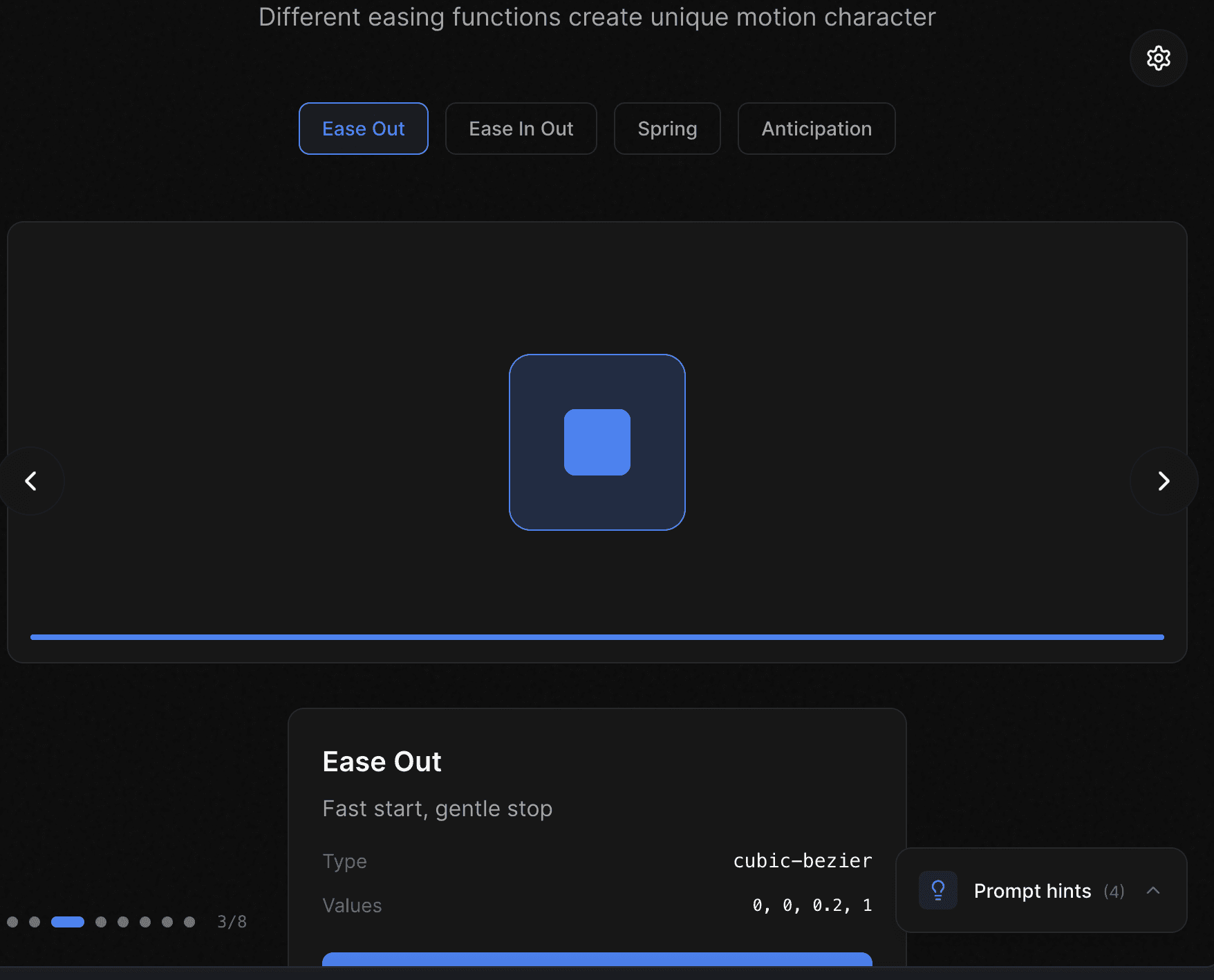
If you want your deck to feel like a keynote and not a PDF, this is the fastest path:
Remix the animation showcase (linked above)
Grab the patterns you want
Drop them into your deck
Step 4: Build a real-world deck
Now for the real test: something with actual information density.
Jakub’s example deck is about global energy consumption, and it highlights the biggest advantage of web decks: you don’t need 20 slides to show 20 views.
Instead, you can put one interactive visualization on a slide:
Click regions on a map to reveal details
Toggle years on a chart
Filter categories in an energy mix
Switch styling modes (color vs minimal)
Jump between slides instantly with dots (and jump back just as fast)
Global energy consumption deck
Rmx link: https://bolt.new/~/sb1-aqhjkdpw
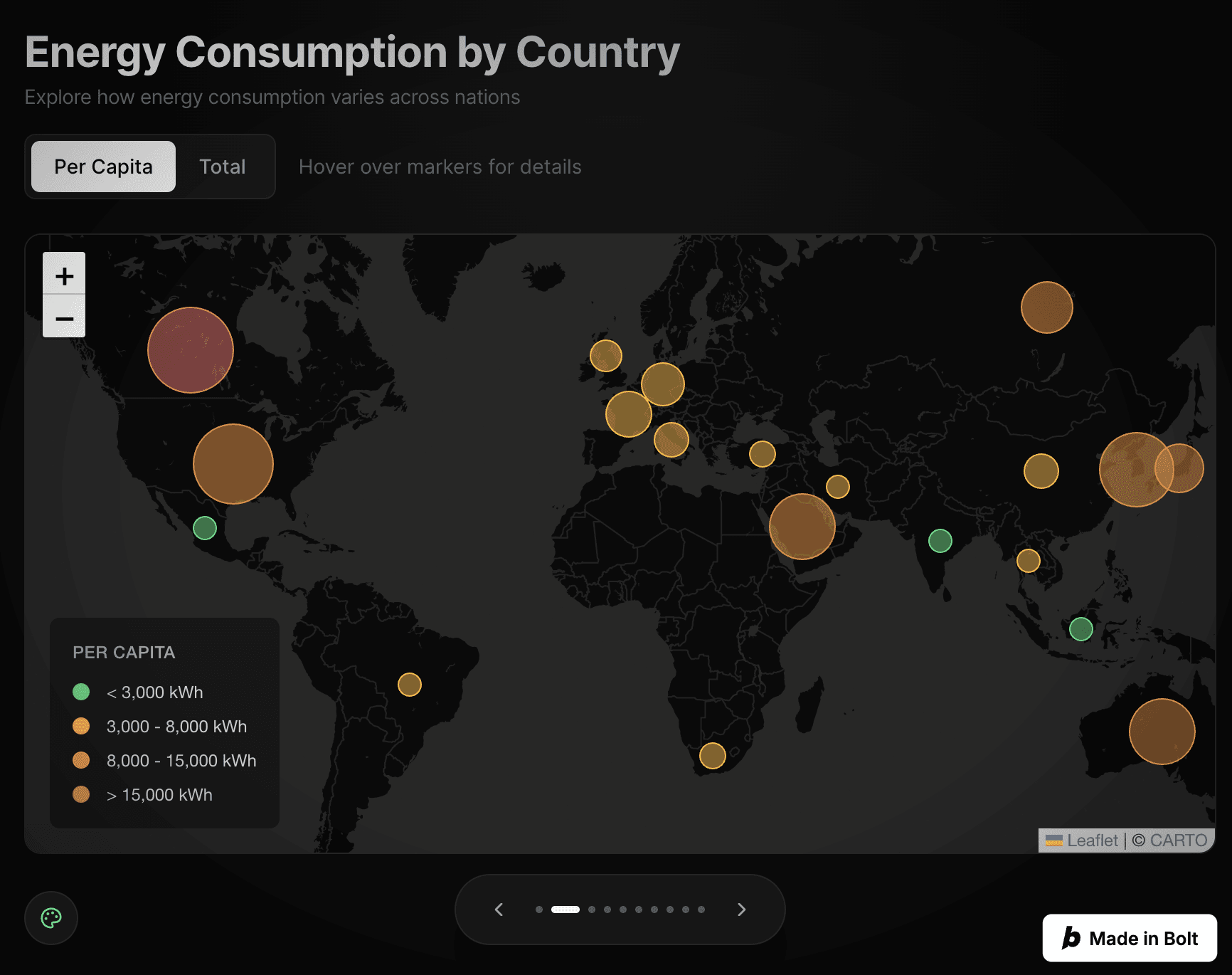
Jakub’s workflow here is simple:
Give Bolt the topic (or paste your content)
Let Bolt generate the first pass
Iterate with a couple prompts until it’s right
The deck linked above took two prompts.
The Bolt deck workflow
Here’s the playbook you can reuse for almost any presentation:
Prompt for a “full-screen presentation website”
This forces the right layout and navigation patterns.Lock the aesthetic
Minimal, premium, consistent typography. Don’t leave this vague.Specify the interaction model
Click-to-reveal, hover detail, charts with toggles, theme switch.Ship a link, not a file
One URL. One source of truth. Refresh to update.Iterate like you’re building a product
Slide decks aren’t static anymore — they’re living interfaces.
When you’re ready to leave PowerPoint behind
Need a deck? Don’t open PowerPoint.