Jan 15, 2026
Bolt x Twilio: Send SMS with Twilio from Bolt
With Bolt x Twilio, you can send transactional texts to your users straight from your Bolt app.
Educational

Want your app to text users automatically when something happens, like a booking confirmation, reminder, or alert?
With Pica x Bolt, you can connect Bolt to Twilio in minutes to send transactional texts right to your users from your app or site.
In this tutorial, we’ll build a meeting room booking app that sends SMS confirmation texts when a booking is successfully made.
What you’ll build
A meeting room booking UI in Bolt
Time-slot selection and booking form
Phone number collection
Automatic SMS confirmation via Twilio
Want an in-depth look at Bolt x Twilio? Watch the walkthrough.
Step 1. Build the booking UI in Bolt
Let’s start by creating the interface.
Prompt Bolt:
Build me the UI for a meeting room booking app.
 Show a list of available meeting rooms.
 When clicking a room, show available time slots for that day.
 When a time slot is selected, open a modal asking for name and phone number.
 Build only the UI.
Tip: Use Enhance Prompt + Plan Mode if you want Bolt to think through layout and edge cases before building.
At this point, nothing sends messages yet. We’re just collecting inputs.
Step 2. Set up Twilio (one-time)
Before connecting Twilio to Bolt, you need a messaging service.
Create a Twilio account
Go to twilio.com
Verify your phone number
Buy or assign a Twilio phone number (trial works)
Create a Messaging Service
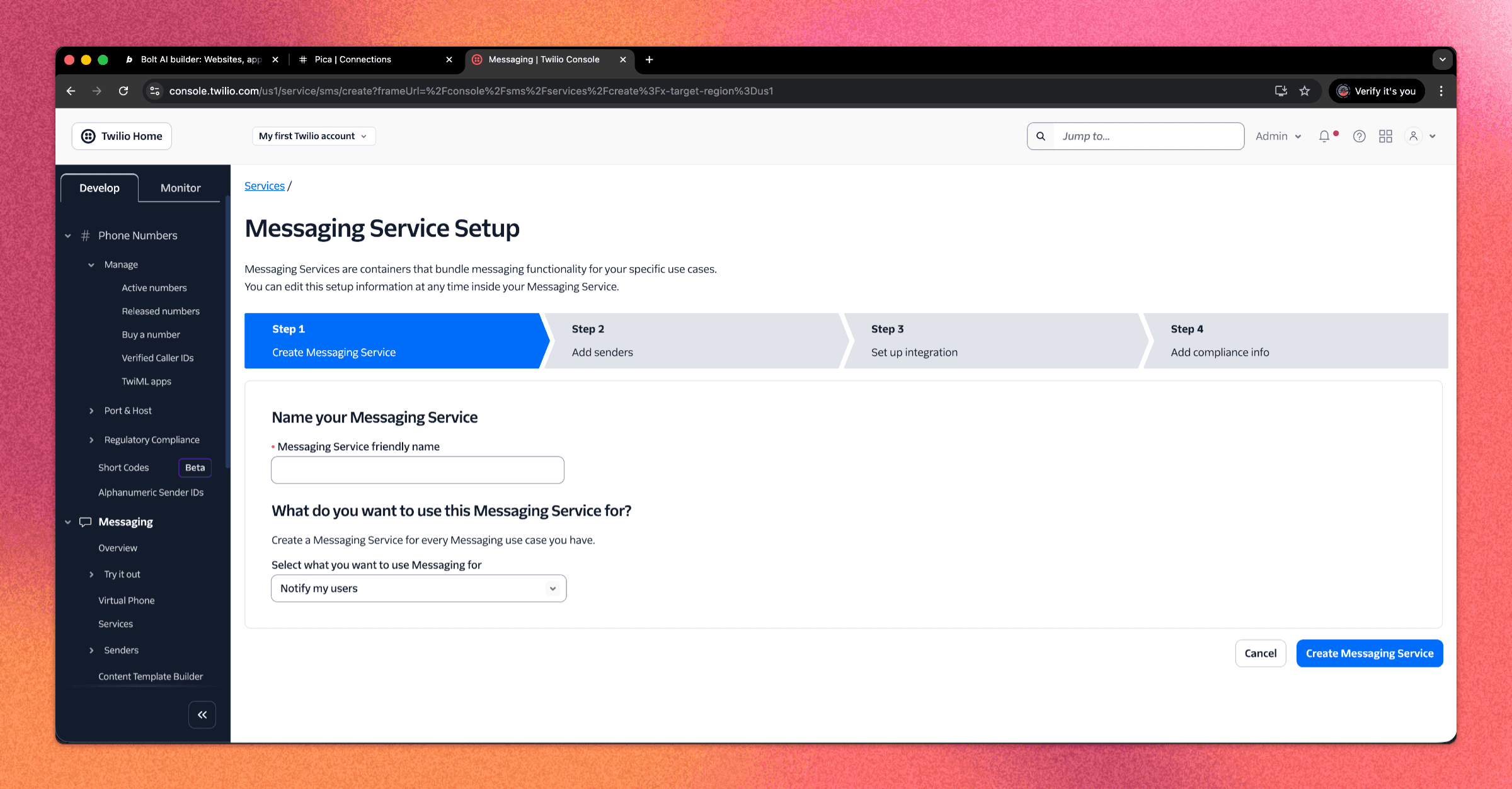
In the Twilio Console:
Go to Messaging → Services
Click Create Messaging Service
Name it (e.g. “Room Bookings”)
Add your Twilio phone number to the Sender Pool
Save these values:
Twilio Account SID
Messaging Service SID (starts with
MG)
Step 3. Connect Twilio to Pica
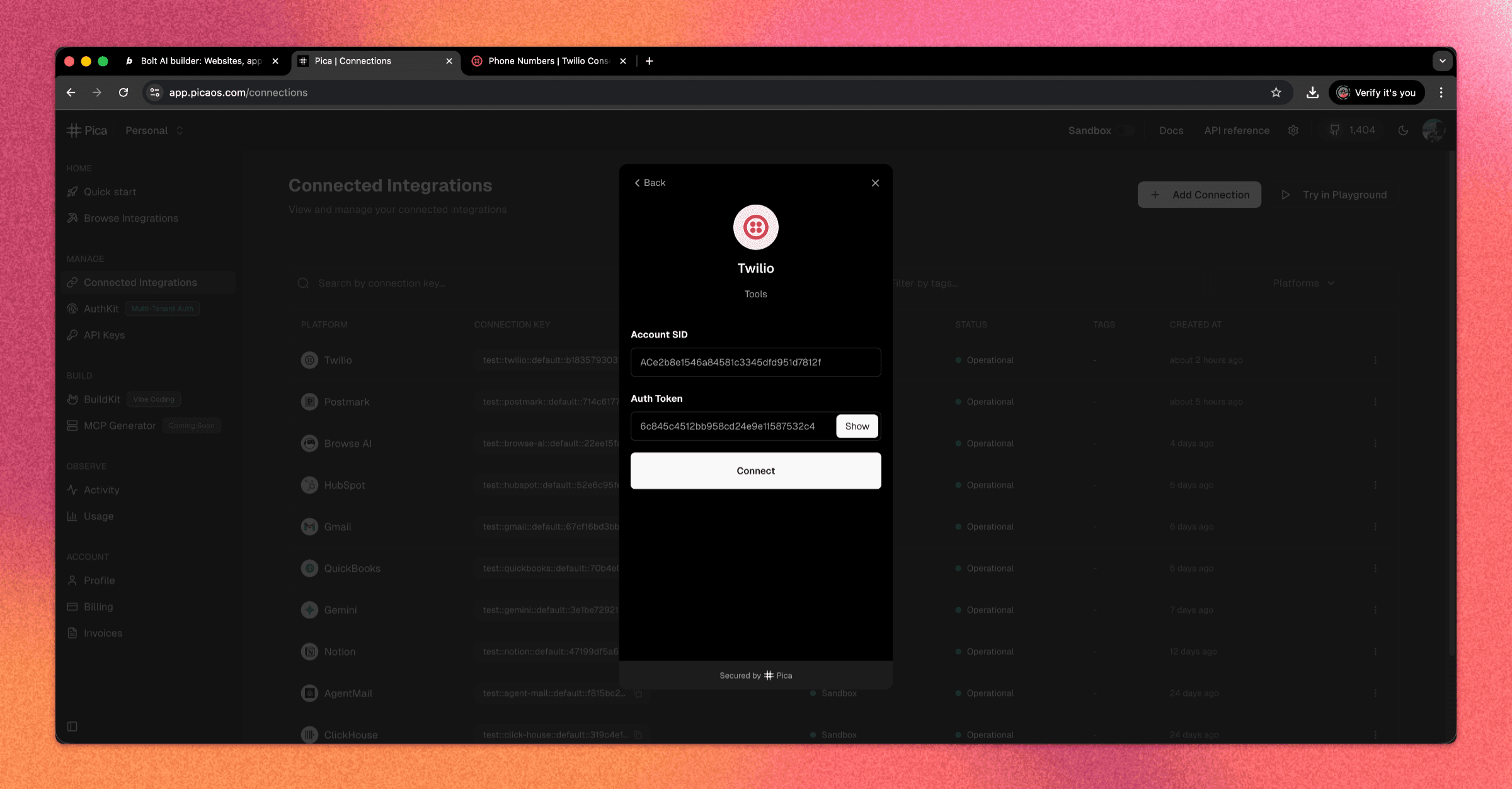
Now, we’ll connect Twilio so Bolt can use it safely.
Go to app.picaos.com/connections
Click + Add Connection
Select Twilio
Enter:
Account SID
Auth Token
Save the connection
Copy the Pica Twilio connection key. You’ll need it in a minute.
Step 4. Generate the Twilio prompt with BuildKit
Next, we’ll need the integration prompt. This is where Pica’s prompt generator, BuildKit, comes in. It’ll generate the backend logic for sending SMS.
Go to app.picaos.com/buildkit
Enter:
Send a message via Twilio using a messaging service with the SID {{YOUR_MESSAGING_SERVICE_SID}}
BuildKit outputs a long, Bolt-ready prompt
Copy it
You’ll get:
Auth wiring
SMS send logic
Error handling
Env variable expectations
Step 5. Wire SMS sending into Bolt
Back in Bolt, connect the UI to Twilio.
Prompt Bolt:
When a user submits the booking form, send them an SMS confirming the booking using Twilio.
 Include the room name, date, and time in the message.
 Use the following integration logic:
 [PASTE BUILDKIT PROMPT]
Bolt will:
Create an edge function
Connect it to the form submission
Prepare secrets automatically
Step 6. Add required secrets in Bolt
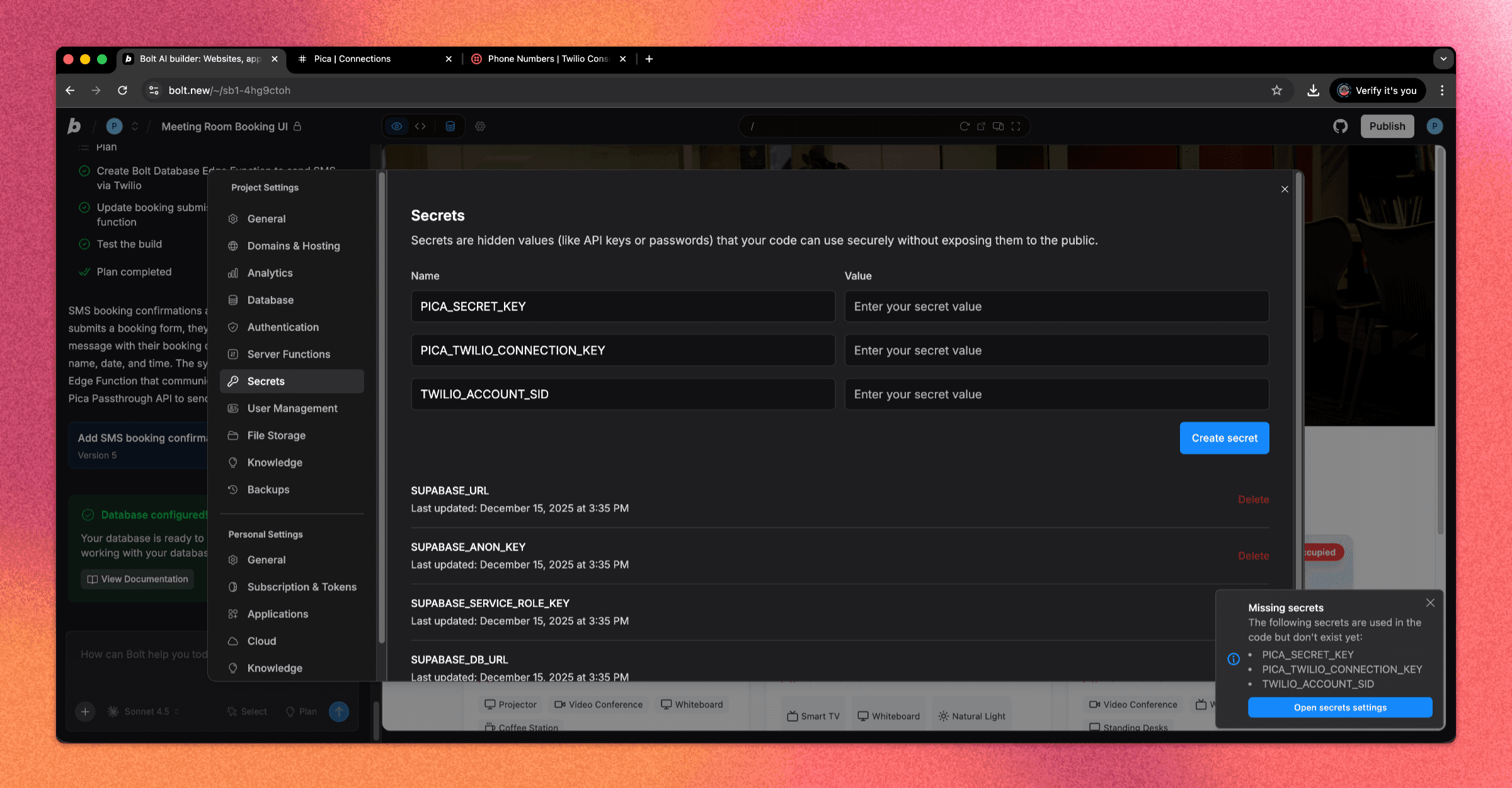
Open Bolt → Settings → Secrets and add:
PICA_SECRET_KEY
(fromapp.picaos.com/settings/api-keys)PICA_TWILIO_CONNECTION_KEY
(from Pica connections)TWILIO_ACCOUNT_SID
(from Twilio dashboard)TWILIO_MESSAGING_SERVICE_SID
(starts withMG)
Now, just save and restart.
Step 7. Test it live
The final step is to make sure it works.
Try it yourself by making a booking in your app:
Select a room
Choose a time slot
Enter name + phone number (E.164 format:
+1234567890)Submit
You should receive an SMS confirmation instantly.
Troubleshooting (common issues)
Hit a snag? It’s probably one of the below issues. They’re quick fixes.
SMS not sending
Double-check all 4 secrets
Confirm Twilio connection is active in Pica
Verify Messaging Service has a sender number
Ensure Twilio account has balance
SMS sent but not received
Check phone number format
Look at Twilio message logs
Some carriers may filter trial messages
You’re all set with Bolt x Twilio
SMS is just the tip of the iceberg. You can also use Bolt x Twilio for appointment reminders, booking cancellations, admin alerts for new bookings, 2FA, voice calls, and more.
Ready to communicate with users right from your app or site? Get building.