You’ve probably seen the viral hand and face tracking effects taking over X in recent months. Builders are creating endlessly fun interactive experiences online.
In this tutorial, we’ll show you how to build interactive apps yourself using MediaPipe and Bolt.
MediaPipe lets you track faces, hands, and bodies in real time using nothing but a camera. Bolt, of course, lets you turn that raw capability into real, usable products fast.
This walkthrough features a total of four interactive apps:
- A MediaPipe interactive showcase
- A fitness rep counter
- An air piano controlled by your fingers
- A posture guardian and meeting engagement tracker
Watch the walkthrough with Jakub Skrzypczak, designer and Bolt.new superuser:
First: What’s MediaPipe?
MediaPipe is Google’s open-source framework for real-time human tracking. It runs entirely in the browser and gives you structured landmark data you can build on immediately.
MediaPipe supports four core detection modes:
Face
- Tracks 468 facial landmarks
- Use for tracking expressions, gaze, and attention
Hands
- Tracks 21 landmarks per hand
- Use for tracking gestures, instruments, and controls
Pose
- Tracks 33 body landmakrs
- Use it for tracking fitness, posture, and movement
Holistic
- Tracks face + hands + body
- Use it for full-body interactions
Instead of raw pixels, you get coordinates, angles, and visibility scores, which serve as perfect inputs for apps.
Explore MediaPipe with an interactive showcase
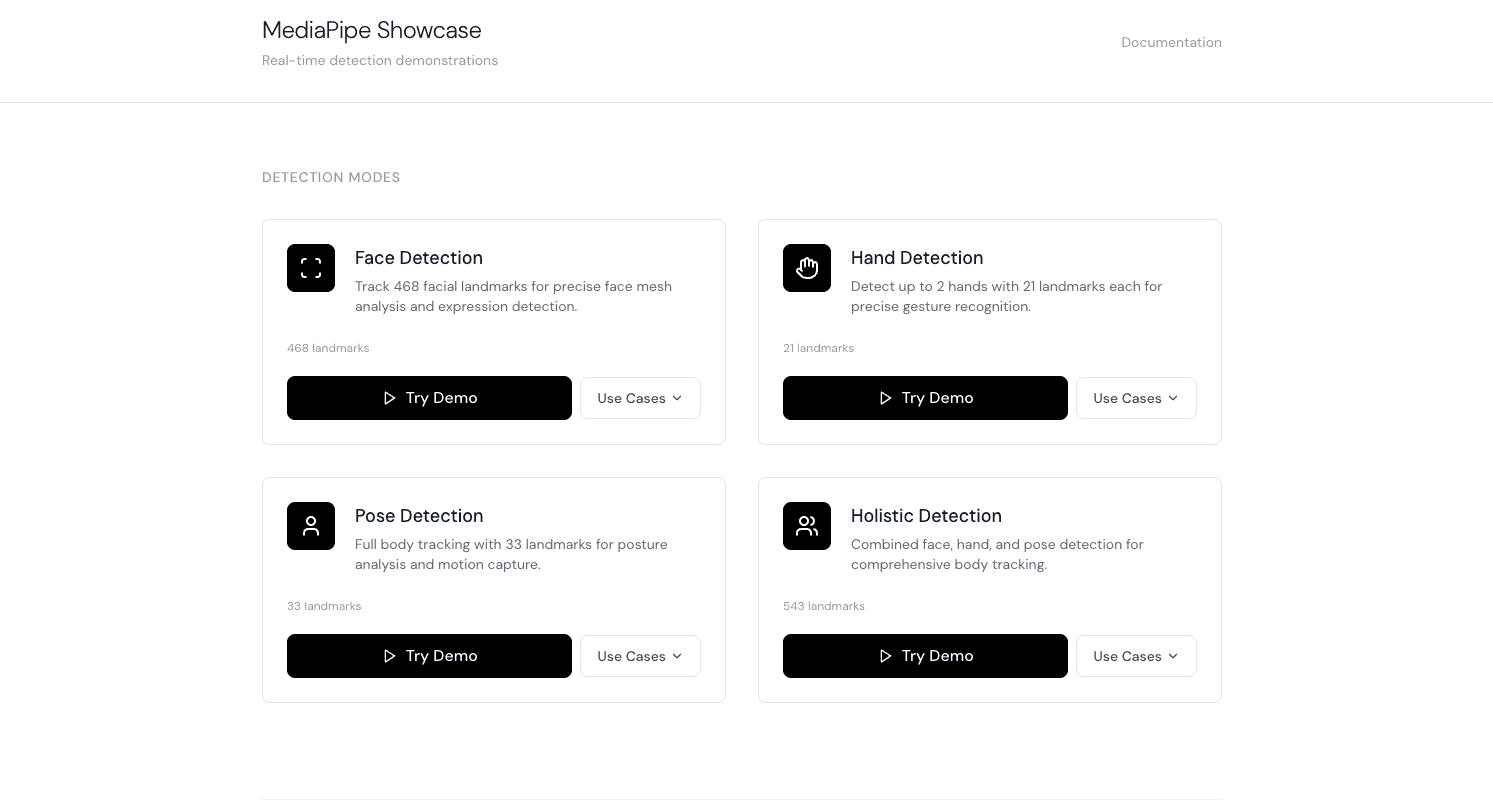
Before you start building, it helps to get a sense for how MediaPipe behaves in real conditions. Fortunately, there’s a live demo for that.
MediaPipe Showcase
- Live Demo: https://mediapipe-detection-p4qs.bolt.host/
- Remix in Bolt: https://bolt.new/~/sb1-sbvzjdsy
This showcase lets you toggle between:
- Face detection: expressions, head rotation, blinking
- Hand tracking: open palms, fists, finger positions
- Pose detection: arms, legs, squats
- Holistic mode: all of the above at once
You’ll quickly notice which angles are reliable and which aren’t (for example, flat palms facing the camera can get glitchy). It’ll help you decide how to design interactions in your app.
App #1: Fitness rep counter (pose tracking)
You can have a lot of fun with interactive apps. But you can also build things that are genuinely useful. This Fitness Tracker is one such example.
Fitness Tracker
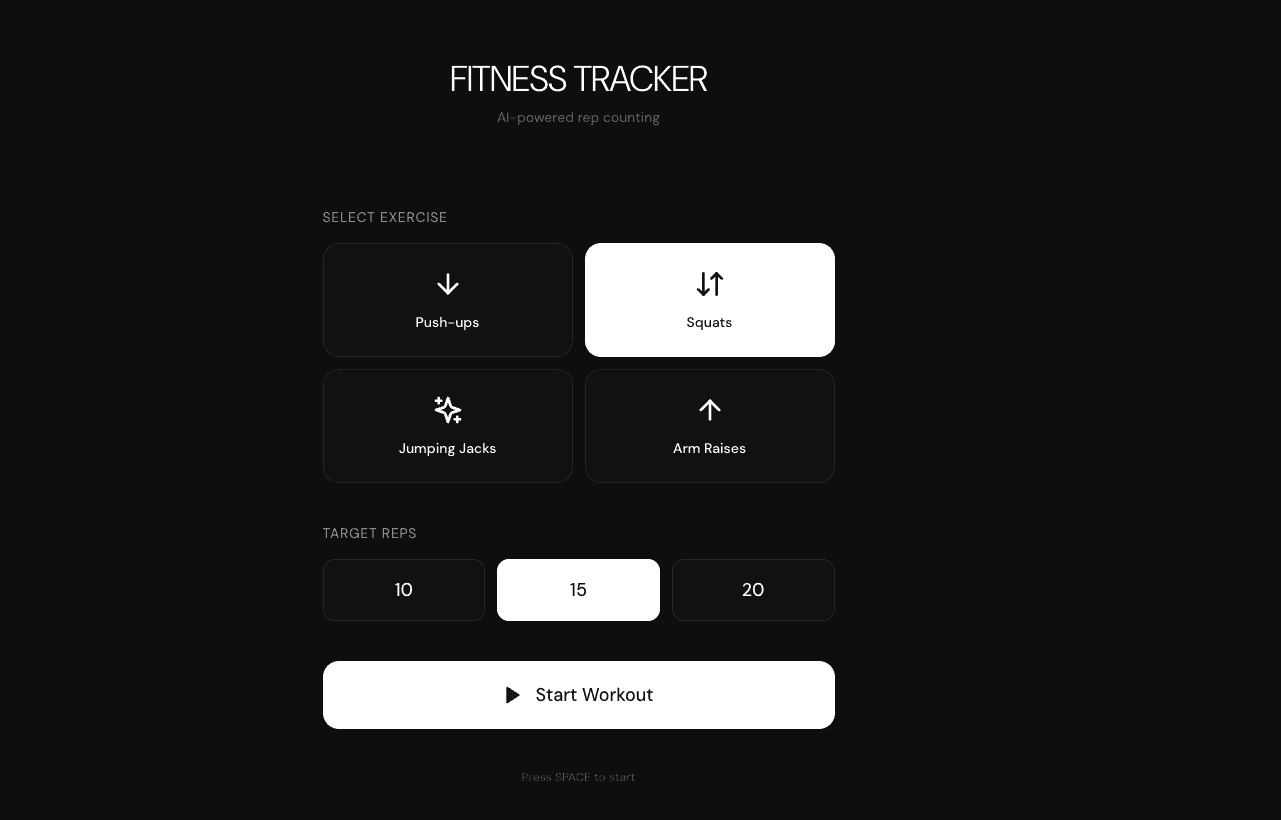
- Live Demo: https://fitness-pose-rep-cou-vegj.bolt.host/
- Remix: https://bolt.new/~/sb1-czsl8jwn
Prompt
Build a clean fitness rep counter for basic exercises using MediaPipe Pose detection.
=== CORE CONCEPT ===
Simple, focused fitness app. Pick an exercise, do it, watch your reps get counted automatically with real-time form feedback. Full-screen camera view with minimal UI.
=== TECH STACK ===
React + TypeScript + Vite
MediaPipe Pose Landmarker
Tailwind CSS
=== EXERCISES (Pick 3-4 Simple Ones) ===
Push-ups (easiest to detect)
Track elbow angle
Count: Straight arms → bent elbows → straight arms
Squats (clear movement)
Track knee and hip angles
Count: Standing → deep squat → standing
Jumping Jacks (fun to track)
Track arm height and leg spread
Count: Arms down/legs together → arms up/legs apart → back
Arm Raises (simple)
Track shoulder to wrist height
Count: Arms down → arms raised above shoulder → back down
=== USER FLOW ===
Setup Screen:
Title: "FITNESS TRACKER"
Exercise selection (large buttons with icons)
Target reps: Quick buttons (10 / 15 / 20)
"Start" button
Countdown:
"3... 2... 1... GO!"
Gets user ready
Workout Screen:
FULL SCREEN camera feed (mirrored)
Thin skeleton overlay on user
Large rep counter (center or corner)
Simple phase indicator: "DOWN" / "UP"
Minimal design, focus on movement
Summary:
"Complete!" message
Final rep count
Duration
"Do Another" / "Done" buttons
=== REP COUNTING LOGIC ===
State Machine (Simple):
For each exercise, track 3 states:
READY (starting position)
PHASE_1 (movement down/out)
PHASE_2 (movement up/back)
Count rep when completing full cycle: READY → PHASE_1 → PHASE_2 → back to READY
Requirements to Count Rep:
Must pass through all states in order
Must hold each state briefly (200-300ms minimum)
Key landmarks must be visible
Movement must be smooth (not glitchy)
Example - Squats:
READY: Standing (knee angle > 160°)
DOWN: Squatting (knee angle < 110°, hip below knee)
UP: Back to standing (knee angle > 160°)
Count +1 when full cycle completes
Example - Push-ups:
READY: Plank position (elbow angle > 160°)
DOWN: Lowered (elbow angle < 100°)
UP: Back to plank (elbow angle > 160°)
Count +1 when full cycle completes
=== VISUAL DESIGN ===
Minimal & Clean:
Full screen camera (no wasted space)
Skeleton overlay: Thin white lines, semi-transparent
Rep counter: Very large number, floating card with blur background
Everything else minimal
Rep Counter:
Huge bold number (e.g., "12")
Positioned where it doesn't block user
Subtle animation when incrementing
That's it - keep it simple
Phase Indicator:
Single word: "UP" / "DOWN" / "READY"
Small text below rep counter
Changes color based on state
Optional - can be removed for even cleaner look
Skeleton Overlay:
Connect key joints with thin lines
Simple, not cluttered
Just enough to see tracking is working
Option to hide it entirely
=== FEEDBACK ===
Keep It Minimal:
Rep counts = satisfaction
Smooth animations
Optional subtle sound on rep count
No complex form feedback (save for later version)
If Form is Very Bad:
Simple message: "Slow down" or "Not detected"
Don't count bad reps
Keep it encouraging, not critical
=== SCREENS (ULTRA SIMPLE) ===
Setup:
Exercise buttons (push-ups, squats, jumping jacks)
Target number
Start button
That's it
Workout:
Camera feed + skeleton
Rep counter
Timer in corner
Stop button (small, unobtrusive)
Summary:
"15 reps completed!"
Time taken
Two buttons: Again / Done
=== TECHNICAL ===
Detection:
MediaPipe Pose at 30fps
Track relevant landmarks per exercise
Simple angle calculations
State machine logic
Smooth landmark positions
Performance:
Efficient rendering
No dropped frames
Responsive UI updates
Quick model loading
=== DESIGN PHILOSOPHY ===
KISS - Keep It Simple, Stupid.
One screen, one focus: counting reps
No complex menus or features
Works immediately
Feels fast and responsive
Satisfying to use
The app should feel like: "I just want to count my reps accurately. That's it."
Think: Apple-level simplicity. Beautiful, minimal, functional. Nothing more, nothing less.
How it works
- Camera feed runs full screen
- MediaPipe Pose tracks 33 body landmarks at ~30fps
- Key joint angles are calculated (knees, hips, elbows)
- A simple state machine counts reps:
- READY → DOWN → UP → READY
- Reps increment only when the full movement cycle completes
Exercises included
- Squats (knee + hip angles)
- Push-ups (elbow angle)
- Jumping jacks (arm height + leg spread)
- Arm raises (shoulder to wrist height)
Why this works well
- Minimal UI = fewer distractions
- Skeleton overlay confirms tracking
- No over-engineered form scoring
- Counts reps accurately and immediately
MediaPipe handles the hard part (body tracking). Bolt handles everything else, including state logic, UI, animations, and performance.
App #2: An air piano with hand tracking
Now let’s do something playful.
Air Piano
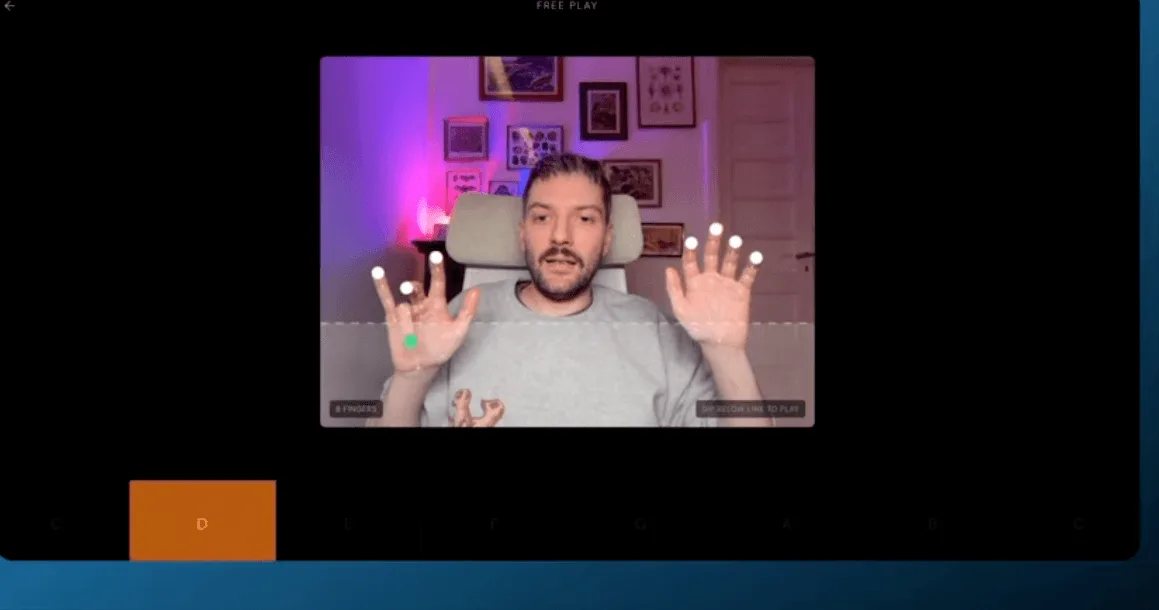
- Live Demo: https://air-piano-rhythm-gam-e26c.bolt.host/
- Remix: https://bolt.new/~/sb1-rxh38pns
Prompt
Build a virtual 8-key piano controlled by finger positions using MediaPipe Hands with two modes: free play and rhythm game.
=== CORE CONCEPT ===
Air piano you control with your fingers. Play freely or follow falling notes Guitar Hero style.
=== TECH STACK ===
React + TypeScript + Vite
MediaPipe Hands
Tailwind CSS
Web Audio API for piano sounds
=== PIANO SETUP ===
8 Keys:
C, D, E, F, G, A, B, C (one octave)
Each finger controls one key
Left hand: Thumb=C, Index=D, Middle=E, Ring=F
Right hand: Index=G, Thumb=A, Middle=B, Ring=C
Detection:
Track one or both hands
Each extended finger hovers over its key
"Press" detected when finger dips down (Y coordinate change)
Key plays sound and lights up
=== TWO MODES ===
1. FREE PLAY:
Just play the piano freely
Keys respond to finger presses
Visual feedback: keys light up
Piano sounds play
Relaxed, exploratory mode
Record and playback optional
2. RHYTHM MODE (Guitar Hero style):
Notes fall from top of screen toward keys
Hit the right key when note reaches target line
Score based on timing accuracy
Play pre-loaded simple songs
Progress through difficulty levels
=== USER FLOW ===
Main Menu:
"FREE PLAY" button
"RHYTHM MODE" button
Settings (sound volume, hand preference)
Free Play:
Full screen with piano keyboard at bottom
Hand tracking display in corner (small)
Keys light up when pressed
That's it - simple and fun
Rhythm Mode - Song Select:
List of 3-5 simple songs:
"Twinkle Twinkle" (very easy)
"Mary Had a Little Lamb" (easy)
"Ode to Joy" (medium)
Shows difficulty and duration
"Play" button
Rhythm Mode - Gameplay:
Piano keyboard at bottom (visual reference)
Notes fall from top in lanes (one per key)
Target line where notes should be hit
Score and combo counter
Progress bar (song completion)
Results:
Final score
Accuracy percentage
Notes hit vs missed
"Play Again" / "New Song" / "Free Play"
=== VISUAL DESIGN ===
Piano Keyboard:
Simplified visual (white keys only for 8 notes)
Clean, modern design
Keys: Off-white when idle
Keys: Bright color when pressed
Labels: Note names on each key
Free Play Screen:
Large piano keyboard (bottom 30% of screen)
Camera feed (optional, can be minimized)
Hand skeleton showing finger positions
Minimal UI - focus on playing
Rhythm Mode Screen:
Piano keyboard (bottom 20%)
Note highway (top 60%)
Notes: Colored circles falling in lanes
Target line: Bright horizontal line
Score display: Top corner, unobtrusive
Note Highway:
Vertical lanes (one per key)
Lane dividers: Thin lines
Notes: Simple circles or rounded rectangles
Color-coded by key/note
Falls smoothly at constant speed
=== DETECTION LOGIC ===
Finger Tracking:
Track extended fingers
Detect finger tips (landmarks 4, 8, 12, 16, 20)
Map finger position to key (X coordinate determines which key)
Detect "press" when finger tip moves down (Y increases)
Key Press Detection:
Finger must be over correct key (X position)
Finger must dip down (Y change threshold)
Trigger once per press (prevent rapid re-triggering)
Visual and audio feedback immediate
Rhythm Mode Timing:
Check if key pressed when note in target zone
Target zone: ±100ms window (configurable)
Perfect: Within ±30ms
Good: Within ±60ms
Okay: Within ±100ms
Miss: Outside window or wrong key
=== GAMEPLAY (RHYTHM MODE) ===
Scoring:
Perfect hit: +100 points
Good hit: +75 points
Okay hit: +50 points
Miss: 0 points, combo breaks
Combo multiplier: 5+ streak = 2x points
Feedback:
Visual: "PERFECT!" / "GOOD" / "MISS" appears briefly
Audio: Different sound for perfect vs good vs miss
Note explodes in particles on hit
Smooth animations throughout
Songs:
Pre-programmed note sequences
3-5 simple, recognizable melodies
Progressive difficulty (starts easy)
Each song 30-60 seconds long
=== AUDIO ===
Piano Sounds:
Clean piano samples for each of 8 notes
Low latency playback (<50ms)
Volume control in settings
Feedback Sounds:
Hit confirmation (subtle click)
Perfect hit (satisfying ding)
Miss (soft "oops" or just silence)
Background music in menus (optional)
=== TECHNICAL ===
Hand Detection:
MediaPipe Hands at 30fps
Track one hand (or both for advanced)
Smooth finger positions
Calibrate sensitivity
Audio System:
Web Audio API for low latency
Pre-load all sound samples
Efficient playback (no lag)
Note Generation:
Pre-defined note sequences for songs
Timing based on BPM
Notes spawn and fall smoothly
=== DESIGN PHILOSOPHY ===
Make it feel like playing a real instrument, even though it's just hand tracking. Responsive, low-latency, satisfying feedback. Simple enough for anyone to try, engaging enough to keep playing.
Free Play = Creative exploration, no pressure
Rhythm Mode = Challenge and achievement, but still fun
Think: Actual musical instrument meets rhythm game. Easy to understand, hard to master, always satisfying to play.
The result: Two modes
Free Play
- Move your fingers
- Keys light up
- Notes play instantly
- No rules, just exploration
Rhythm Mode
- Notes fall Guitar Hero–style
- Hit the right key at the right time
- Scoring + combos
- Simple songs like *Mary Had a Little Lamb
Design lesson
From the showcase earlier, you already know:
- Rotations work well
- Depth works well
- Flat, edge-on hand angles don’t
This app avoids unreliable angles and feels surprisingly real.
App #3: Posture guardian (pose tracking, background-aware)
This one is designed to run all day and help users clean up their posture.
Posture Guardian
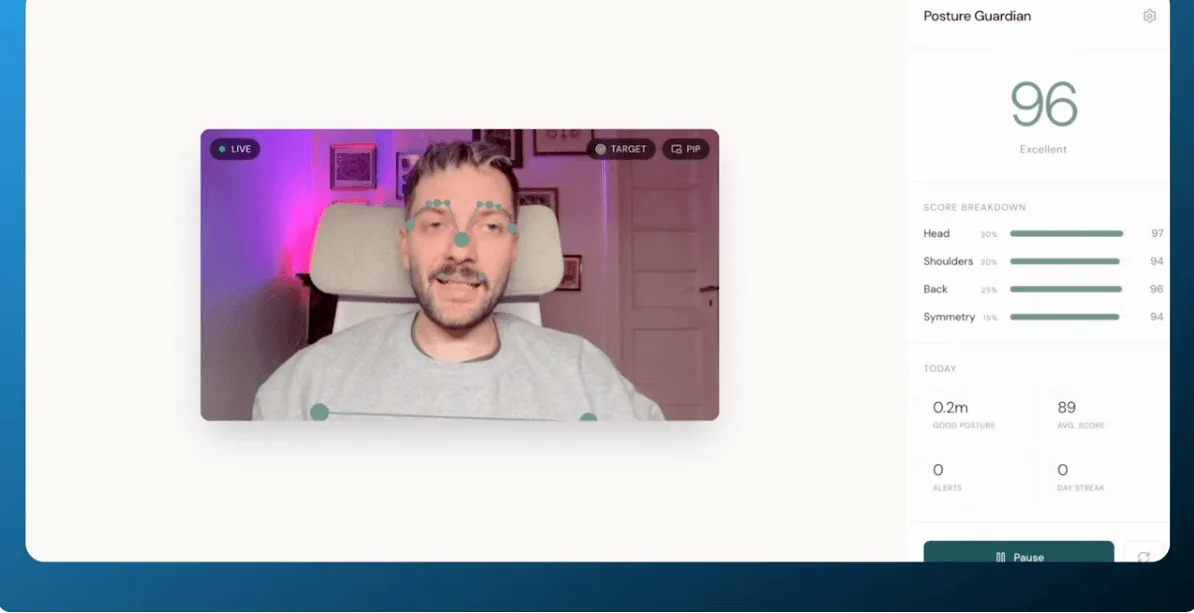
- Live Demo: https://real-time-desk-postu-70k6.bolt.host/
- Remix: https://bolt.new/~/sb1-fjphuwmq
Prompt
Build a real-time posture monitoring web application that uses the device camera and AI pose detection to analyze and improve users' sitting posture.
Core Concept
A desktop/laptop web app that runs in the background while users work, continuously monitoring their posture via webcam and providing gentle alerts when posture degrades. Think of it as a digital ergonomics coach.
Tech Stack
React + TypeScript + Vite
MediaPipe Pose (load from CDN: https://cdn.jsdelivr.net/npm/@mediapipe/pose)
Zustand for state management
Tailwind CSS for styling
Lucide React for icons
date-fns for date formatting
Bolt Database for persistence (sessions, daily summaries, settings)
Key Features
1. Pose Detection & Analysis
Use MediaPipe Pose to detect 33 body landmarks from webcam feed
Focus on upper body: nose, ears, eyes, shoulders, elbows, wrists, hips
Calculate posture metrics: head angle, shoulder angle, neck angle, shoulder symmetry, head forward offset
Use a calibration system where users set their "ideal posture" as baseline
Score posture 0-100 based on deviation from calibrated baseline
Use rolling average (30 frames) to smooth scores and prevent jitter
2. Calibration Wizard
3-second countdown with visual feedback
User sits in ideal posture, app captures baseline metrics
Store calibration in both Zustand and Bolt Database
Show skeleton overlay comparison (baseline vs current)
3. Alert System with Progressive Escalation
Alert levels: none → caution → warning → alert
Thresholds based on duration of poor posture (in foreground: 60s caution, 3min warning, 5min alert)
Immediate alert if score drops below 40 (critical threshold)
Browser Notification API for background alerts
Web Audio API for sound alerts (pleasant chime, not jarring)
Configurable sensitivity (threshold score) and notification frequency
4. Visual Interface
Collapsible panel design - minimal when collapsed, detailed when expanded
Real-time skeleton visualization overlaid on video (optional, toggle in settings)
Color-coded score display (green/yellow/orange/red based on score)
Score breakdown showing head, shoulder, back, symmetry components
Animated circular progress indicator
Weekly chart showing daily averages
Today's stats: average score, hours of good posture, alerts count
5. Settings
Alert sensitivity slider (score threshold)
Notification frequency (low/medium/high)
Sound on/off toggle
Stretch reminder interval
Show/hide video feed
Show/hide baseline overlay
Critical Technical Challenge: Background Tab Detection
Browsers heavily throttle JavaScript in background tabs. This is the hardest part of the app. Here's what works:
Problem: requestAnimationFrame pauses completely when tab is hidden. setInterval is throttled to once per second at best. Video processing nearly stops.
Solution - Multi-layered approach:
Silent Audio Trick: Create an AudioContext playing inaudible audio (1Hz, gain 0.001). This signals to the browser that the page is "active" and reduces some throttling.
requestVideoFrameCallback: When available (Chrome), use this instead of requestAnimationFrame for video processing - it's less throttled.
Web Worker Heartbeat: Create a worker that sends messages at regular intervals. Workers aren't throttled the same way. Use these messages to trigger frame processing.
setInterval Fallback: In background, switch to setInterval-based processing. Even if throttled to 1fps, some detection continues.
Baseline Score Comparison: Store the user's score when they switch away from the tab. When processing finally happens in background, compare current score to that baseline. If dropped 25+ points, trigger alert. This catches degradation even with delayed detection.
Periodic Notification Check: Run a 30-second interval that checks last known score and sends notifications if poor. This survives throttling since it doesn't need real-time.
Visibility Change Handler:
document.addEventListener('visibilitychange', () => {
if (document.visibilityState === 'hidden') {
// Store current score for later comparison
// Switch to background processing mode
// Start notification interval
} else {
// Resume normal processing
// Clear baseline score
}
});
Database Schema (Bolt Database)
Tables needed:
user_settings: alert_sensitivity, notification_frequency, sound_enabled, stretch_reminder_interval, etc.
posture_sessions: id, user_id, start_time, end_time, average_score, alerts_count
daily_summaries: date, average_score, total_minutes_tracked, good_posture_minutes, alerts_count, sessions_count
Enable RLS on all tables. Users can only access their own data.
UI/UX Guidelines
Dark, muted color palette (grays, subtle blues/teals for accents)
No purple/indigo
Minimal, non-intrusive design - users are working, not staring at this app
Smooth transitions and micro-animations (respect reduced motion preference)
Clear visual hierarchy: current score is most prominent
Collapse to small floating widget showing just score + status indicator
Expand for full stats, settings, and visualization
Posture Scoring Algorithm
Score = (headScore * 0.30) + (shoulderScore * 0.30) + (backScore * 0.25) + (symmetryScore * 0.15)
- headScore: Based on head angle deviation and forward head offset from baseline
- shoulderScore: Based on shoulder width ratio and angle vs baseline (detect hunching)
- backScore: Based on neck angle deviation (slouching)
- symmetryScore: Based on shoulder height difference and angle (leaning)
Each component: 100 = perfect alignment with baseline, decreases with deviation.
Important Implementation Notes
MediaPipe must be loaded dynamically from CDN - don't bundle it
Use Camera.onFrame for proper video frame timing during calibration
Always check landmark visibility (>0.5) before using landmarks
Handle case where shoulders go off-screen (sitting too close) - this should tank the score
Clear pose history when stopping/starting tracking
Persist calibration baseline to survive page refresh
Request notification permission early in the flow
Test on both Chrome and Firefox - Safari has additional restrictions
How it works
- User calibrates ideal posture (3-second capture)
- App continuously compares:
- Head angle
- Neck angle
- Shoulder symmetry
- A rolling average smooths jitter
- A posture score (0–100) updates in real time
- Gentle alerts trigger when posture degrades
The hard part: Background tabs
Browsers throttle background tabs aggressively.
This app uses:
requestVideoFrameCallback- Web Workers
- Silent AudioContext trick
- Periodic score comparison
Result: posture alerts still fire even when the tab isn’t visible.
App #4: Track meeting presence with face detection
Finally, let’s use facial landmarks to build an app that helps users see how engaged and active they are on virtual meetings.
Meeting Stats App
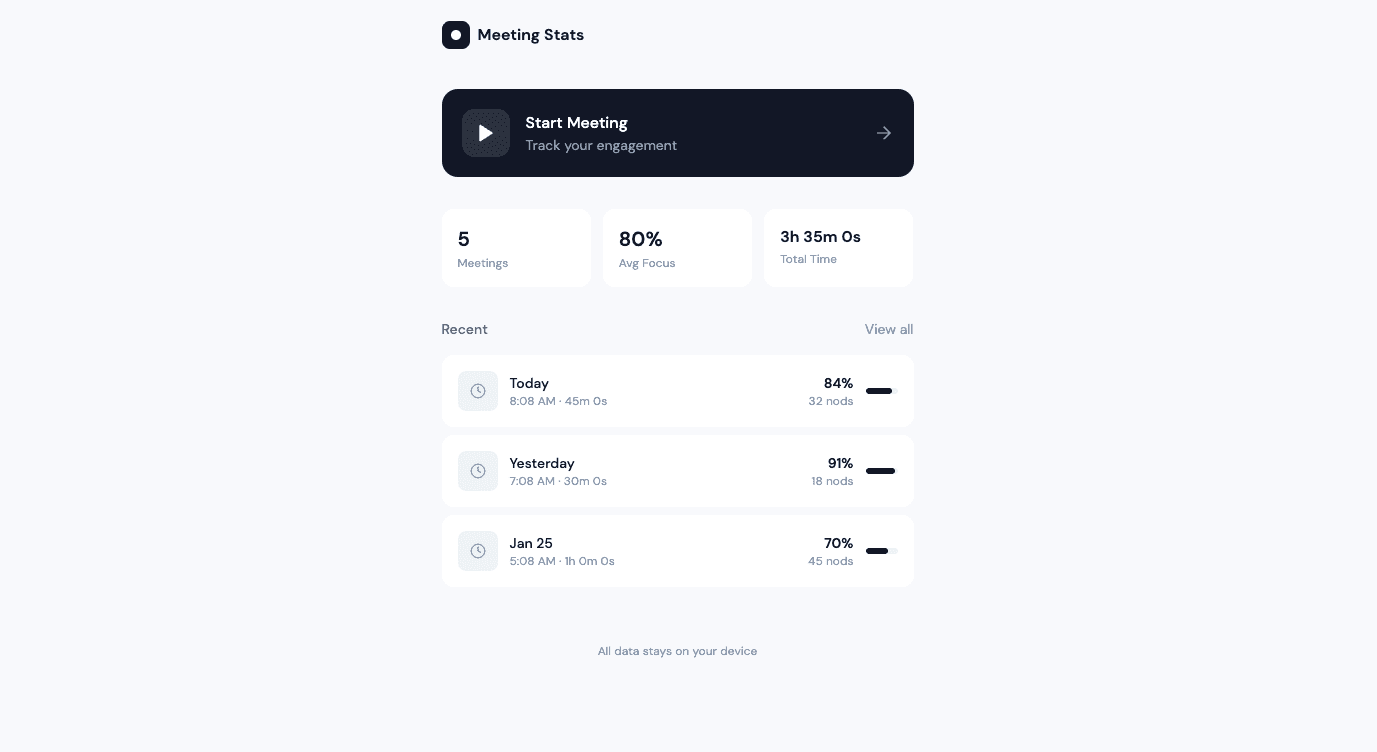
- Live Demo: https://meeting-stats-web-ap-67t1.bolt.host/
- Remix: https://bolt.new/~/sb1-gdiyiwo6
Prompt
Create a "Meeting Stats" web application that uses MediaPipe Face Detection to track and visualize personal meeting engagement metrics in real-time.
Core Functionality:
Meeting Session Controls
Large "Start Meeting" button to begin tracking
Live timer showing current meeting duration
"End Meeting" button that stops tracking and shows dashboard
Simple, clean interface during recording
Real-Time Tracking (Background Processing)
Attention Detection: Track when face is detected vs not detected (looking at screen vs away)
Nod Counter: Detect vertical head movements (up-down motion of face landmarks) and count as nods
Gaze Heat Map: Track which areas of the screen the user's face is positioned relative to, store coordinates over time
Post-Meeting Dashboard
Display after clicking "End Meeting":
Meeting Summary Card: Total duration, date/time
Attention Score: Percentage of time face was detected, with visual progress bar
Nod Counter: Total nods with fun copy like "You nodded 47 times - active listener! 👏"
Focus Heat Map: Visual representation showing where on screen user spent most time (use color intensity - red for most time, blue for least)
Timeline Graph: Simple line chart showing attention levels throughout meeting (5-minute intervals)
Fun Insights: Generate quirky observations like:
"Peak focus at [time]"
"You looked away X times - coffee runs? ☕"
"Most active nodding period: [timeframe]"
History & Trends
List of past meetings with basic stats
Store in localStorage
"View Details" to see full dashboard for any past meeting
Simple stats: average attention rate, total meetings, total nods
Technical Requirements:
Use MediaPipe Face Detection library via CDN
Access webcam with proper permissions handling
All processing happens locally in browser (privacy-first)
Use localStorage for meeting history
Responsive design that works on desktop
Clean, modern UI with playful elements (emojis, fun copy)
Design Style:
Minimalist, premium aesthetic
Primary color: Deep blue (#1e3a8a)
Accent: Bright cyan (#06b6d4)
Soft shadows, rounded corners
Ample white space
Playful but professional tone
UI Flow:
Landing page with "Start Meeting" CTA and brief explainer
During meeting: Minimal UI, just timer and small "End" button, webcam feed in corner
After meeting: Full dashboard with all stats and visualizations
History page: List of all past meetings
Key Features:
Privacy notice: "All data stays on your device"
Optional: Toggle webcam preview on/off during meeting
Export meeting stats as image or text summary
Clear all history button
Make it fun, visually engaging, and give users surprising insights about their meeting behavior!
What it tracks (Locally only)
- Face detected vs not detected (attention)
- Head nods (vertical movement)
- Gaze position on screen
- Focus heat map
- Attention timeline
After the meeting
You get:
- Attention score (%)
- Nod count
- Focus heat map
- Timeline of engagement
- Fun insights like:
“You nodded 12 times — active listener 👏”
All data stays on the device.
Ready to build your own?
Experiment by:
- Remixing any demo
- Swapping detection modes
- Changing interactions
- …or shipping something entirely new
Get started now.