
Until now, giving Bolt context meant doing it by hand. Start a chat, describe the project, list the requirements, paste in the docs, then do it again every time something changed.
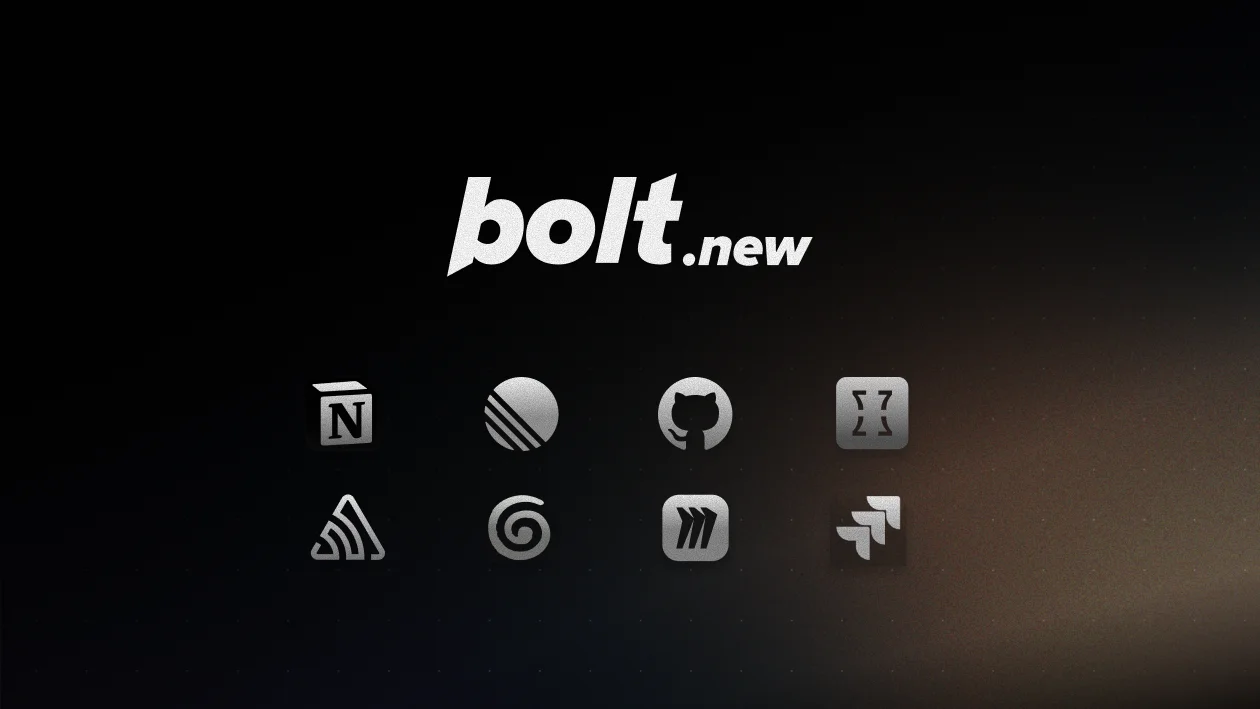
Connectors change that. Bolt plugs straight into the tools you already work in: Notion, Linear, GitHub, Miro, Sentry, Context7, Granola, and Jira.
What Connectors do
A Connector is a direct line between Bolt and a tool you use. Once it's live, Bolt can read and edit your Notion pages while it builds, pull live task lists from Linear, or open a pull request from a GitHub issue, no copy-paste required.
Bolt works with the context straight from the source, so you're not playing a game of AI telephone.
Connectors run on MCP (Model Context Protocol), an open standard for tool-to-AI communication. Any tool with a remote MCP server can become a Connector, with no custom integration to build.
Built-in Connectors
Eight Connectors ship with Bolt today: Notion, Linear, GitHub, Miro, Sentry, Context7, Granola, and Jira. Pick one, authenticate with an API key or a sign-in, and Bolt can start doing what that tool supports: reading pages, pulling tasks, opening issues.
Custom Connectors
Need a tool that's not on the list? If it has a remote MCP server, add it as a custom Connector. You'll need:
- The remote server URL (from the tool's MCP docs)
- The transport type (usually HTTP, or SSE if the tool specifies)
- Your credentials (API key or OAuth sign-in)
Public servers that don't require auth skip the credentials step. Most tools that support MCP publish setup docs, so search "[tool name] MCP server" to find them.
Access control
Each Connector comes with a set of actions that match what the tool can do: read pages, create issues, edit tasks, delete files. They're all on by default, and you can switch any of them off.
Connectors live in your personal settings and follow you across projects. Running a lot of them at once can slow Bolt down, so turn on only what a project needs. If you reach for the same tools every time, set them to auto-enable on new projects.
Get started
Open your settings and go to Connectors → Manage connectors. Start with the tools you're in every day. The built-in ones take a few clicks to switch on.