PowerPoint and Google Slides are old news. Now, people are creating slide decks the simpler way with AI tools.
In this tutorial, designer and Bolt super-user Jakub Skrzypczak demonstrates how to create a professional, interactive slide deck with Bolt fast.
You'll learn:
- How to prompt Bolt so you get a professional layout on the first try
- Why web-based presentations beat traditional slide editors
- How to add motion, transitions, and interactivity that makes decks feel alive
- How to apply the same approach to a real-world deck (with charts, maps, toggles, sources)
Got time? Watch the walkthrough.
In a hurry? Get the highlights and snag the prompts below.
The mindset shift: your slide deck is now a website
Building a slide deck in Bolt is a little different than building a deck in PowerPoint in that, instead of building slides in a slide editor, you're essentially building a full-screen presentation website.
That means you get:
- Pixel-perfect rendering across devices
- Real responsiveness (desktop to tablet to mobile)
- Real interactivity (hover, click, toggles, charts)
- Real animations (not "please loop this GIF")
- A single URL as the source of truth
The best part, as always, is that Bolt can get you far with just one prompt.
Why this workflow beats PowerPoint & Slides
Before we reveal the prompt, here's why you'll probably want to opt for a Bolt-generated deck next time you have a presentation.
1) No licensing, no installs, no version chaos
PowerPoint decks are files. And files have a tendency to multiply.
We've all had the experience of creating a file, saving it, and emailing it to ourselves, only to make a small tweak an hour later and wind up creating yet another nearly identical file to send off.
Before you know it, your inbox is clogged with ten versions of "final_FINAL_for REAL_V4.pptx."
Worse still, when it comes time to present, there's always the possibility you'll accidentally use an old version.
Web decks solve for this.
When you build a web deck with Bolt, your presentation exists at one URL. If you tweak something, just update it once. Everyone sees the same thing.
2) Pixel-perfect across devices
In traditional tools, what you design isn't always what your audience sees. If you present on a different device, it may not have your fonts saved. Everything gets thrown off.
In web presentations, rendering is consistent by default, and you can control fonts and fallbacks like a real product.
3) Real mobile support
This is a big one.
If your boss opens your deck while commuting, a .pptx is basically unusable. A web deck is responsive and readable immediately.
4) Interactivity is native
Hover states. Click-to-reveal. Expandable detail. Live charts. Toggles. All that good stuff.
Here's how to build it.
Step 1: Start with a prompt that forces "presentation mode"
Your prompt should start by telling Bolt what the end product should be.
So, your prompt will begin with "Create a premium, full-screen presentation website."
That phrase does a lot of work. It tells Bolt to:
- Build for keyboard navigation
- Optimize spacing and typography for projectors
- Treat each "slide" as a screen
- Make it feel like a deck, not a scroll page
Remix link: https://bolt.new/~/sb1-h5j1u8a1
The full prompt covers design requirements (flat, minimalist design with monochromatic color scheme, full-screen layout optimized for presentation mode, professional premium aesthetic, noise and dither effect, consistent visual hierarchy), technical features (responsive design, dark/light mode toggle, web-based functionality, interactive elements, cross-platform compatibility), and a 10-slide content structure demonstrating why web-based presentations beat traditional slide software.
In seconds, you should have a deck with:
- Full-screen slides
- Arrow-key navigation
- Slide dots / jump nav
- Dark/light mode
- Transitions + hover states
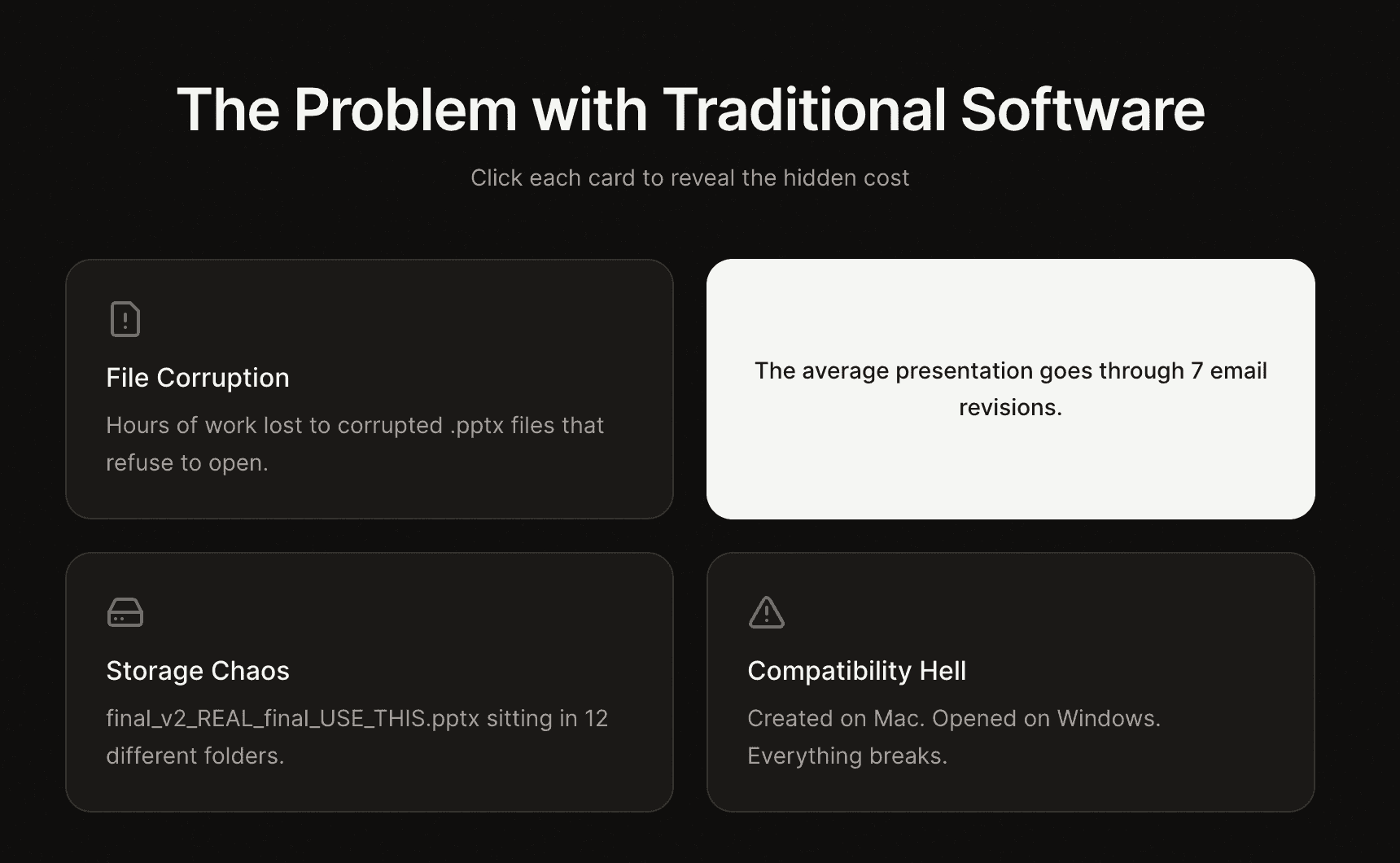
This prompt does the bulk of the work.
Now, you iterate until it's perfect.
Step 2: Add interactivity
This is where web-based decks really blow traditional slide deck editors out of the water.
You can make your slide deck feel a lot more alive if you build it in Bolt.
Prompt Bolt to ensure:
- cards are clickable and reveal detail
- slides include click-to-reveal advantages
- theme toggles persist across the entire deck
- hover states add "premium" polish without clutter
A deck that responds feels modern and keeps people engaged.
Step 3: Add animations, transitions, and motion
Once you've got the deck structure, you can layer in motion.
In Jakub's example, he asked Bolt to make sure:
- headings fade in to guide the eye
- supporting content follows
- transitions help pacing
- ambient motion makes it feel premium when used sparingly
Animation showcase
Remix link: https://bolt.new/~/sb1-j6tctuh6
Jakub built an entire slide deck that is itself a library of reusable animation patterns, with prompts and code included inside the slides so you can copy what you need.
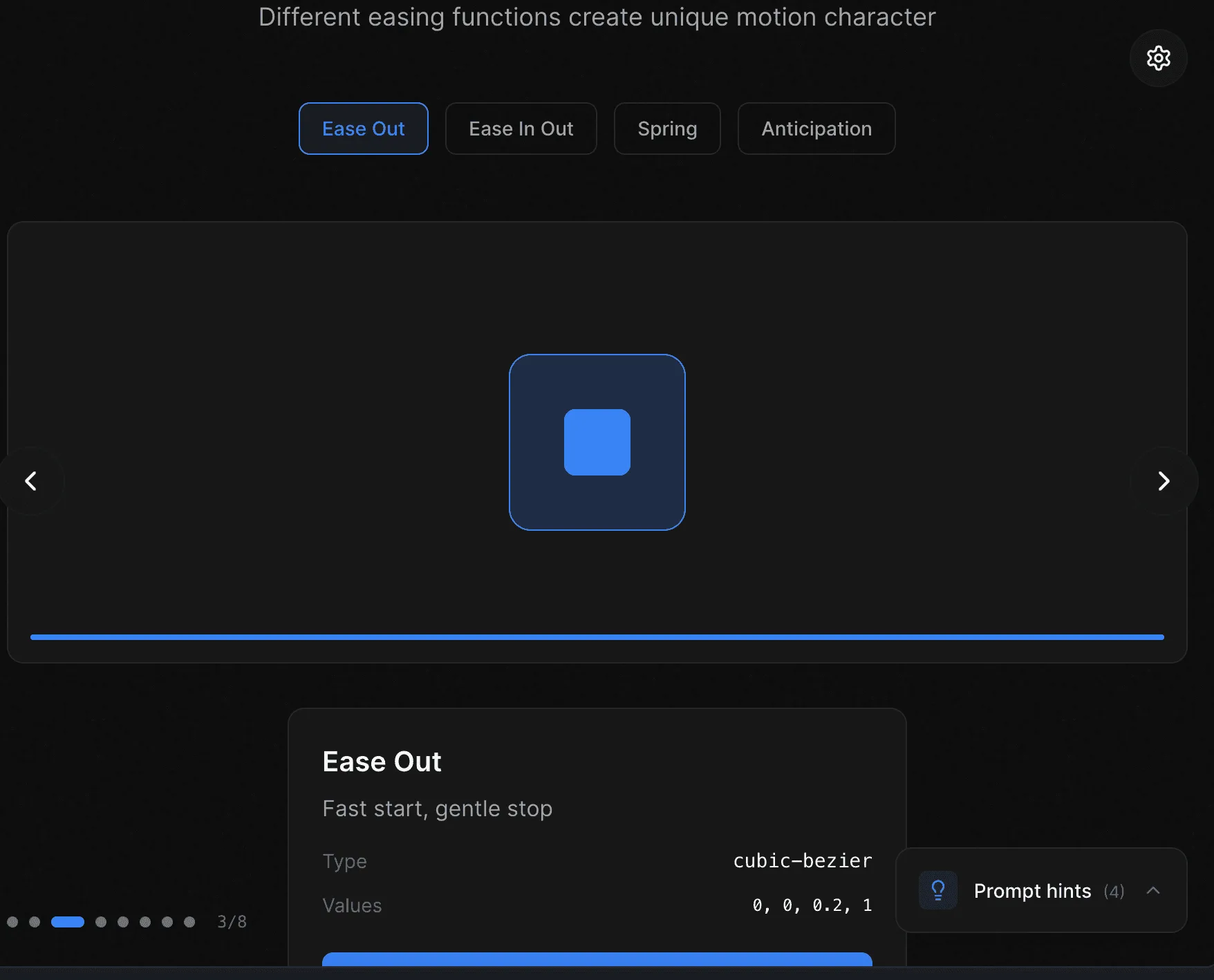
If you want your deck to feel like a keynote and not a PDF, this is the fastest path:
- Remix the animation showcase (linked above)
- Grab the patterns you want
- Drop them into your deck
Step 4: Build a real-world deck
Now for the real test: something with actual information density.
Jakub's example deck is about global energy consumption, and it highlights the biggest advantage of web decks: you don't need 20 slides to show 20 views.
Instead, you can put one interactive visualization on a slide:
- Click regions on a map to reveal details
- Toggle years on a chart
- Filter categories in an energy mix
- Switch styling modes (color vs minimal)
- Jump between slides instantly with dots (and jump back just as fast)
Global energy consumption deck
Remix link: https://bolt.new/~/sb1-aqhjkdpw
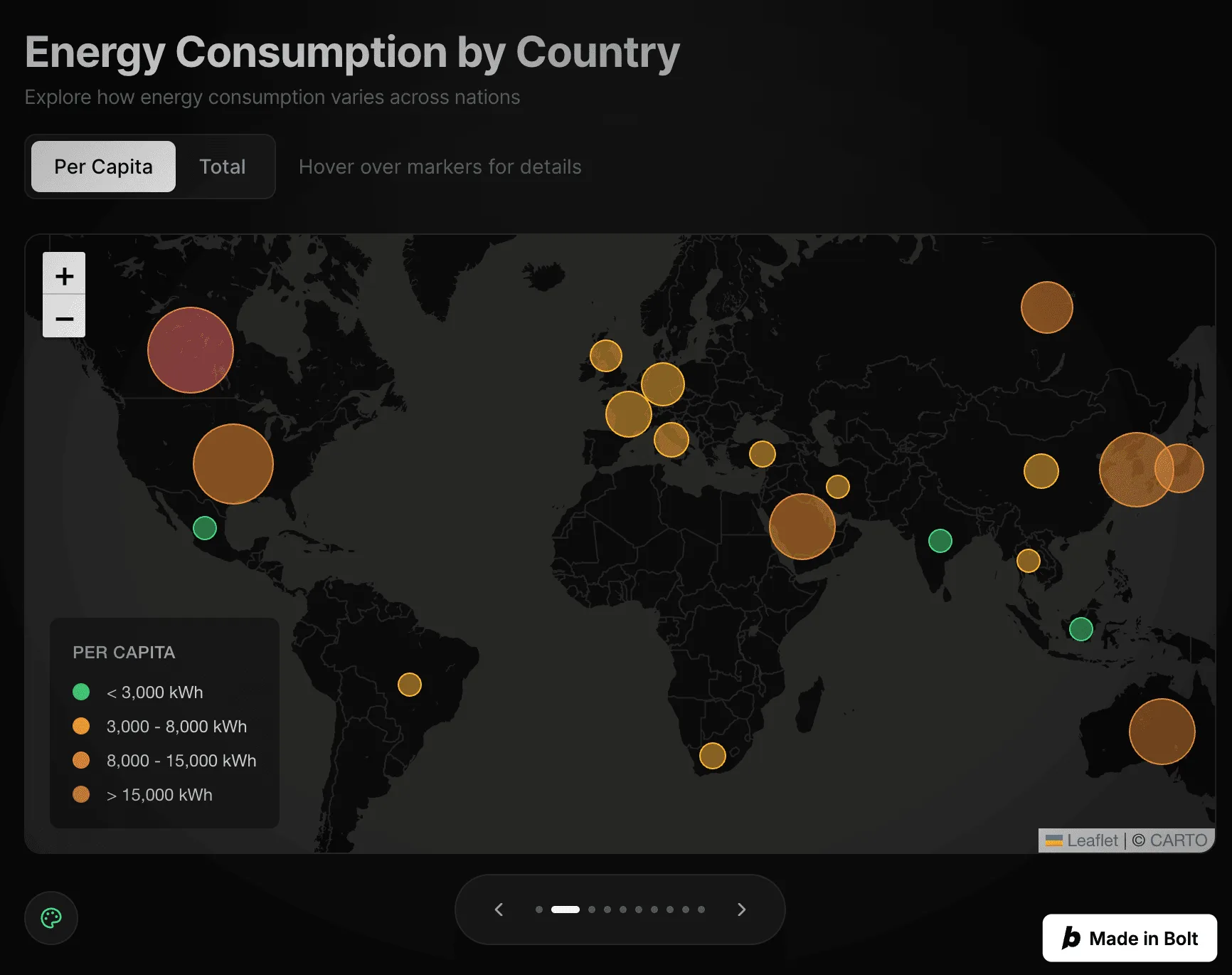
Jakub's workflow here is simple:
- Give Bolt the topic (or paste your content)
- Let Bolt generate the first pass
- Iterate with a couple prompts until it's right
The deck linked above took two prompts.
The Bolt deck workflow
Here's the playbook you can reuse for almost any presentation:
- Prompt for a "full-screen presentation website." This forces the right layout and navigation patterns.
- Lock the aesthetic. Minimal, premium, consistent typography. Don't leave this vague.
- Specify the interaction model. Click-to-reveal, hover detail, charts with toggles, theme switch.
- Ship a link, not a file. One URL. One source of truth. Refresh to update.
- Iterate like you're building a product. Slide decks aren't static anymore, they're living interfaces.
When you're ready to leave PowerPoint behind
Need a deck? Don't open PowerPoint.
Open Bolt.