
Want your app to text users automatically when something happens, like a booking confirmation, reminder, or alert?
With Pica x Bolt, you can connect Bolt to Twilio in minutes to send transactional texts right to your users from your app or site.
In this tutorial, we’ll build a meeting room booking app that sends SMS confirmation texts when a booking is successfully made.
What you’ll build
- A meeting room booking UI in Bolt
- Time-slot selection and booking form
- Phone number collection
- Automatic SMS confirmation via Twilio
Want an in-depth look at Bolt x Twilio? Watch the walkthrough.
Step 1. Build the booking UI in Bolt
Let’s start by creating the interface.
Prompt Bolt:
`Build me the UI for a meeting room booking app.
Tip: Use Enhance Prompt + Plan Mode if you want Bolt to think through layout and edge cases before building.
At this point, nothing sends messages yet. We’re just collecting inputs.
Step 2. Set up Twilio (one-time)
Before connecting Twilio to Bolt, you need a messaging service.
Create a Twilio account
- Go to twilio.com
- Verify your phone number
- Buy or assign a Twilio phone number (trial works)
Create a Messaging Service
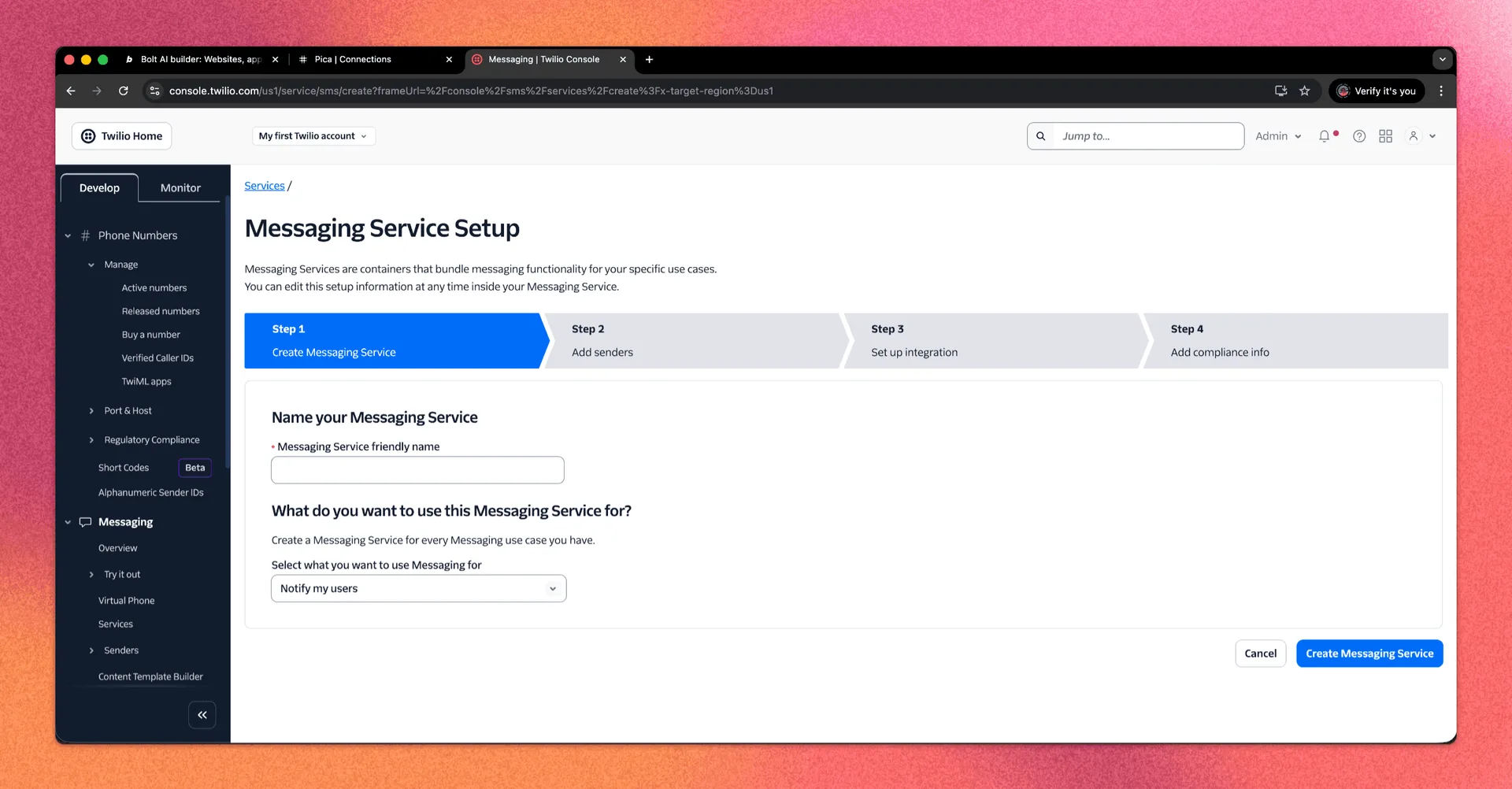
In the Twilio Console:
- Go to Messaging → Services
- Click Create Messaging Service
- Name it (e.g. “Room Bookings”)
- Add your Twilio phone number to the Sender Pool
Save these values:
- Twilio Account SID
- Messaging Service SID (starts with
MG)
Step 3. Connect Twilio to Pica
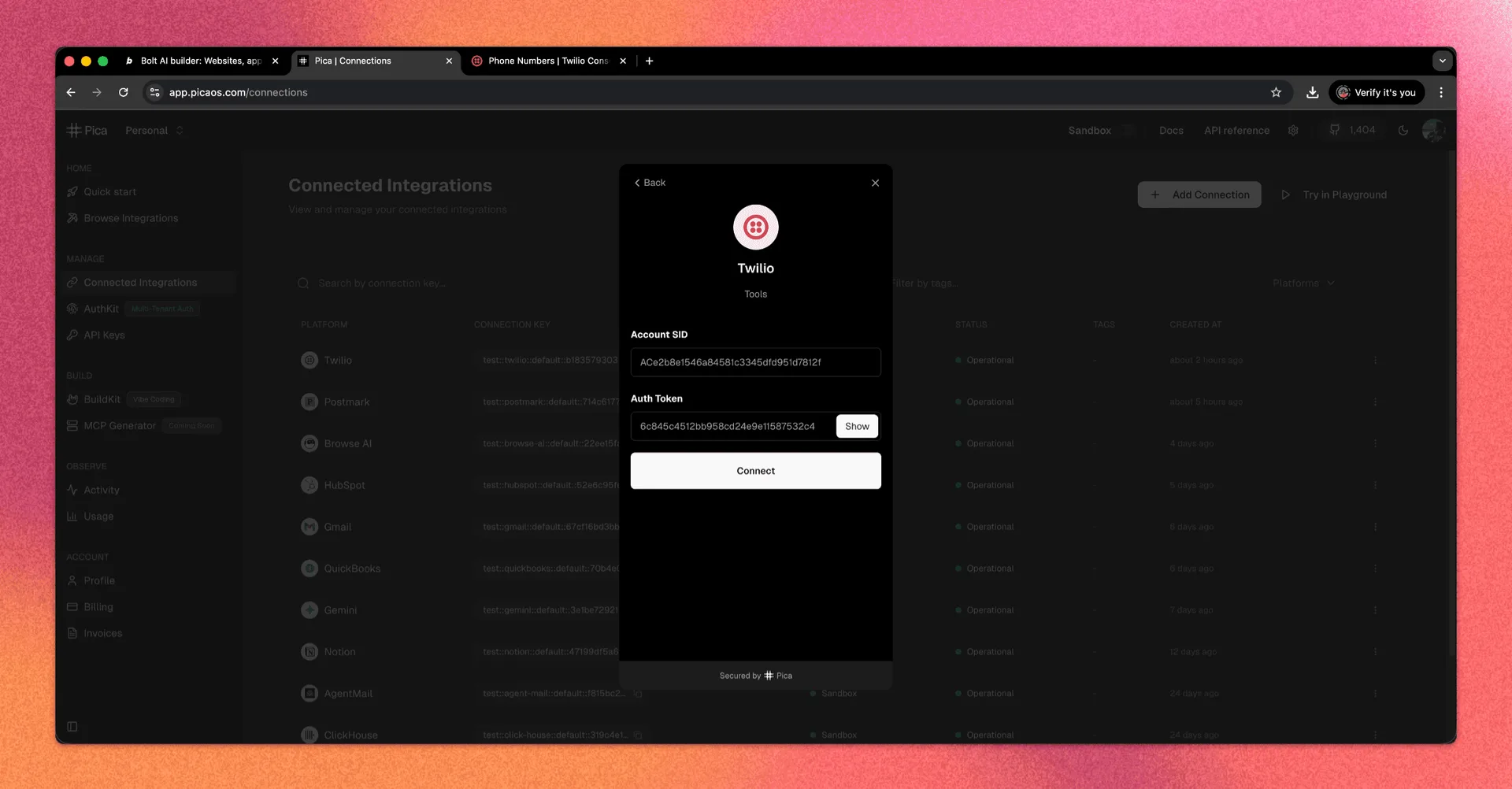
Now, we’ll connect Twilio so Bolt can use it safely.
- Go to app.picaos.com/connections
- Click + Add Connection
- Select Twilio
- Enter:
- Account SID
- Auth Token
- Save the connection
Copy the Pica Twilio connection key. You’ll need it in a minute.
Step 4. Generate the Twilio prompt with BuildKit
Next, we’ll need the integration prompt. This is where Pica’s prompt generator, BuildKit, comes in. It’ll generate the backend logic for sending SMS.
- Go to app.picaos.com/buildkit
- Enter:
Send a message via Twilio using a messaging service with the SID {{YOUR_MESSAGING_SERVICE_SID}}
- BuildKit outputs a long, Bolt-ready prompt
- Copy it
You’ll get:
- Auth wiring
- SMS send logic
- Error handling
- Env variable expectations
Step 5. Wire SMS sending into Bolt
Back in Bolt, connect the UI to Twilio.
Prompt Bolt:
`When a user submits the booking form, send them an SMS confirming the booking using Twilio.
Bolt will:
- Create an edge function
- Connect it to the form submission
- Prepare secrets automatically
Step 6. Add required secrets in Bolt
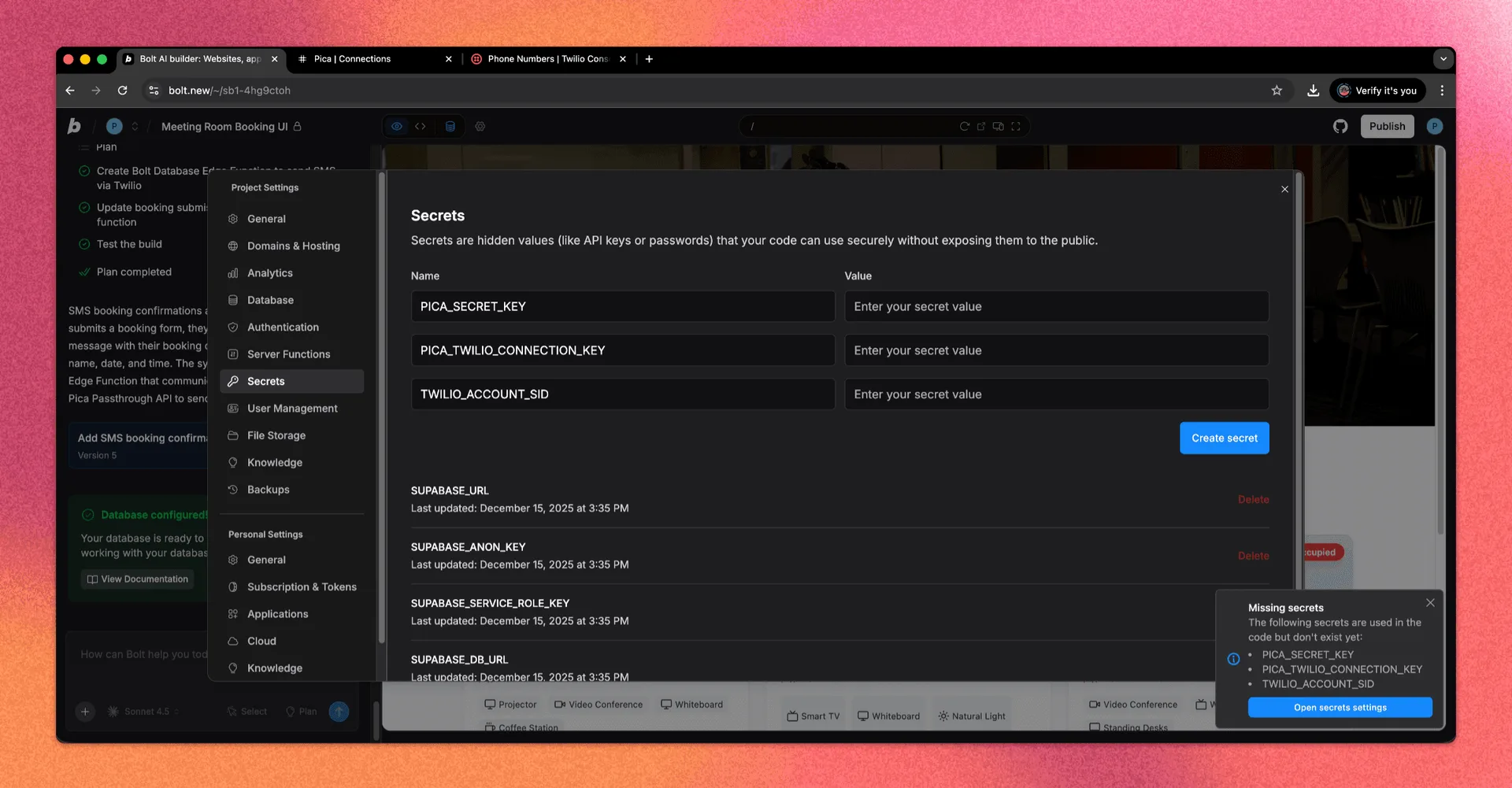
Open Bolt → Settings → Secrets and add:
- PICA_SECRET_KEY
(from
app.picaos.com/settings/api-keys) - PICA_TWILIO_CONNECTION_KEY (from Pica connections)
- TWILIO_ACCOUNT_SID (from Twilio dashboard)
- TWILIO_MESSAGING_SERVICE_SID
(starts with
MG)
Now, just save and restart.
Step 7. Test it live
The final step is to make sure it works.
Try it yourself by making a booking in your app:
- Select a room
- Choose a time slot
- Enter name + phone number (E.164 format:
+1234567890) - Submit You should receive an SMS confirmation instantly.
Troubleshooting (common issues)
Hit a snag? It’s probably one of the below issues. They’re quick fixes.
SMS not sending
- Double-check all 4 secrets
- Confirm Twilio connection is active in Pica
- Verify Messaging Service has a sender number
- Ensure Twilio account has balance
SMS sent but not received
- Check phone number format
- Look at Twilio message logs
- Some carriers may filter trial messages
You’re all set with Bolt x Twilio
SMS is just the tip of the iceberg. You can also use Bolt x Twilio for appointment reminders, booking cancellations, admin alerts for new bookings, 2FA, voice calls, and more.
Ready to communicate with users right from your app or site? Get building.