
Want to enable non-developers to edit your blog or marketing site without touching code? Use Notion as the CMS for your Bolt site.
With Pica x Bolt, you can connect Bolt to Notion in minutes to add and edit posts to your Bolt site via the Notion CMS.
What you’ll build
- A blog page in Bolt with post cards (image, title, description)
- Posts loaded dynamically from a Notion database
- A post detail page that renders the Notion page content (as markdown)
- (Optional) Drafts: hide posts until they’re “Done”
Want an in-depth look? Watch the walkthrough.
Step 1. Build the blog UI in Bolt
In Bolt, prompt:
Build me a blog page that has articles listed in cards with an image, title, and truncated description. For now, this is all static dummy data. When I click on a card, it should open that blog in a new page.
(Why dummy data? Because if you don’t say this, Bolt may create a Bolt database automatically. We want Notion to be the source of truth here.)
Step 2. Create your Notion database
In Notion:
- Create a new page → add a database (Notion’s “Document Hub” template works great).
- Make sure you have these properties:
- Name (Title)
- Description (Text)
- image (Files & media)
Optional (recommended for drafts):
- Add a Status property (type: Status) with values like:
In progress(draft)Done(published)
Step 3. Connect Notion to Pica
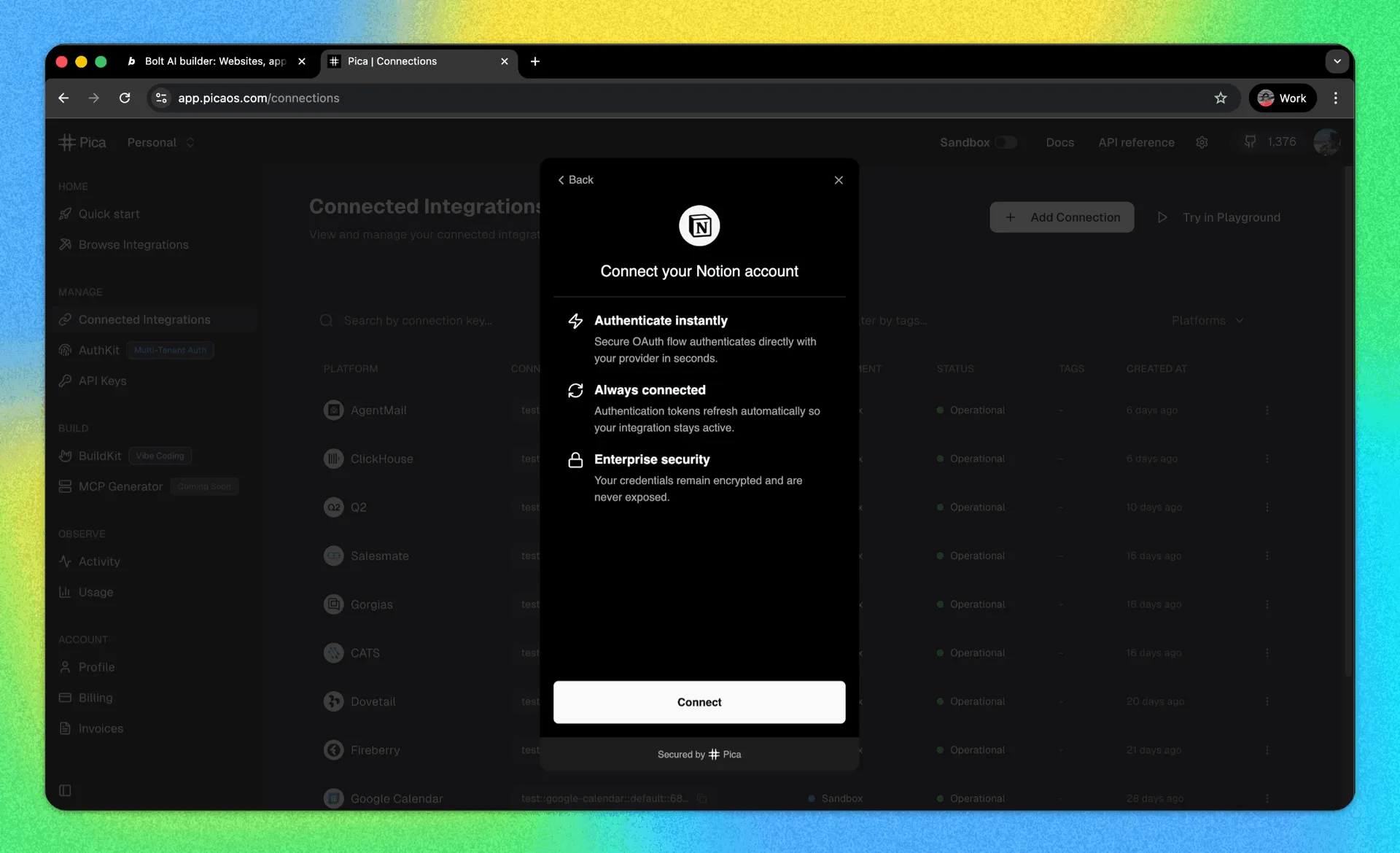
- Go to Pica dashboard →
app.picaos.com/connections - Click + Add Connection
- Choose Notion
- Authenticate and grant access to the specific Notion page/database you created
- Copy/save your Notion connection key (you’ll need it)
Step 4. Copy your Notion Database ID
Open your database in Notion and copy the URL.
The database ID is the 32-character string before ?v=.
Example URL:
Database ID:
Step 5. Generate the integration prompt in BuildKit
Now we’re going to use BuildKit, the tool in Pica that generates perfect integration prompts for Bolt.
Go to: `app.picaos.com/buildkit
`
Enter:
Retrieve the notion database [YOUR_DATABASE_ID] and get all the items within it. Then also retrieve block children from a notion page.
BuildKit will output a long prompt for Bolt that includes:
- auth setup
- Notion query structure
- error handling
- env var names to add in Bolt
All you have to do is copy it.
Step 6. Paste into Bolt and wire it to your UI
Back in Bolt, prompt something like:
`I want to fetch my blog content from Notion instead of dummy data.
Bolt will create the backend logic (usually an edge function) and update your pages to use it.
Step 7) Add secrets in Bolt
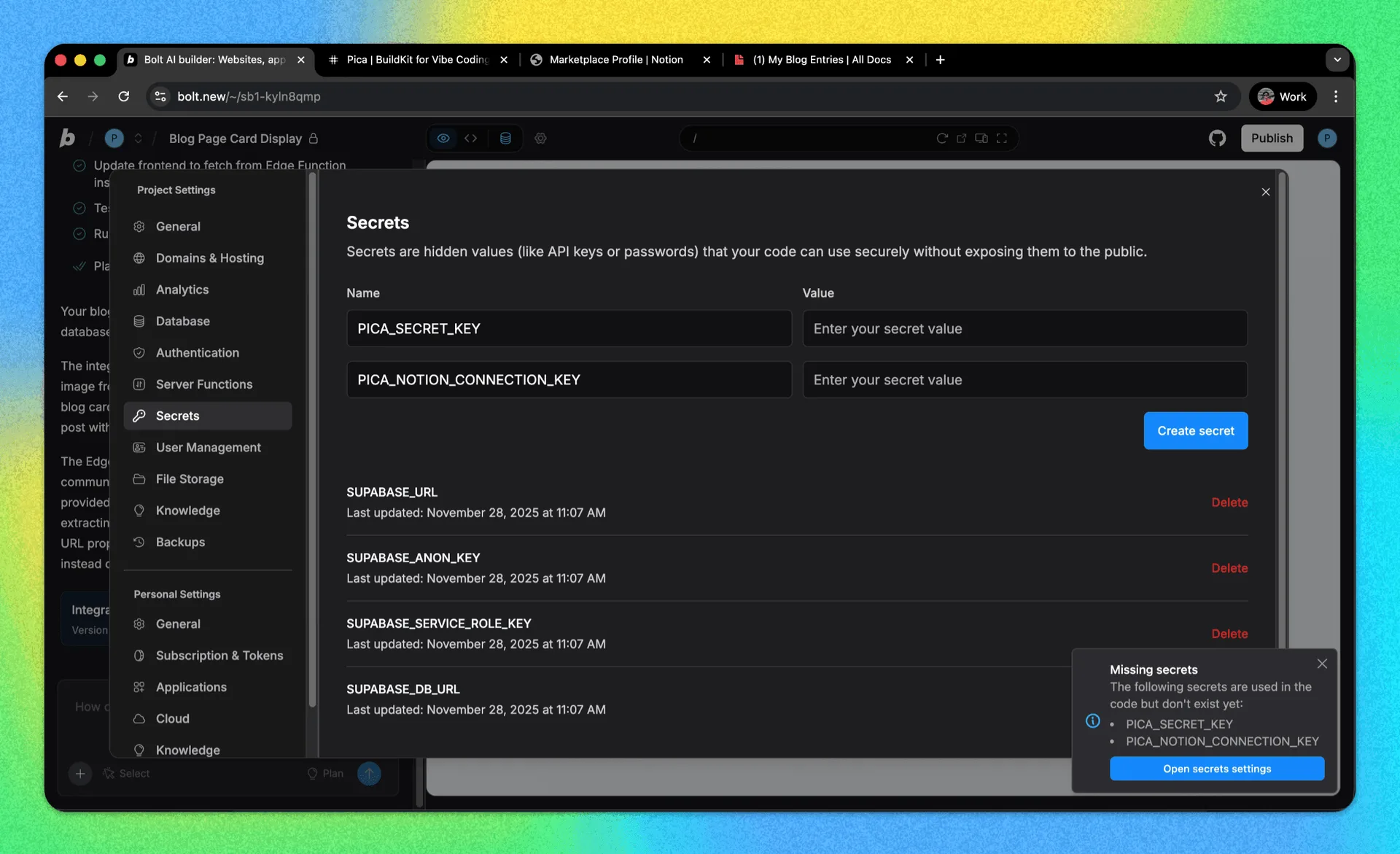
In Bolt:
- Open Settings
- Go to Secrets
- Add these environment variables:
`PICA_SECRET_KEY
Get from:[app.picaos.com/settings/api-keys](http://app.picaos.com/settings/api-keys)
`PICA_NOTION_CONNECTION_KEY
Get from:[app.picaos.com/connections](http://app.picaos.com/connections)
Save and restart. Now, your blog should load from Notion.
Step 8. (Optional) Hide drafts with Status = Done
If you added a Notion Status property:
Prompt Bolt:
My Notion database has a Status property (type: Status). Only show posts where Status is Done. Hide posts that are In progress.
If it doesn’t work right away, it usually means the Status field isn’t a plain string (Notion returns a structured object).
Fix with:
Status is a Notion “status” type. Use the status value’s name field (e.g., "Done") when filtering.
Troubleshooting checklist (common problems)
Running into issues? It’s probably one of the following common snags. Here’s how to fix it.
Nothing loads
- Confirm both secrets are set correctly in Bolt
- Make sure your Notion connection has access to the right page/database
- Double-check the database ID
- Verify property names match exactly (case-sensitive):
Name,Description,image,Status
Images don’t show
- Ensure
imageis Files & media - Make sure each post actually has a file uploaded
Draft filtering breaks
- Status isn’t plain text: filter by
status.name
You’re all set with Bolt x Notion
Now you can:
- add/edit posts in Notion
- refresh your Bolt site
- see updates instantly (or add caching later if you want)
Ready to use Notion in Bolt? Get building.